Home / The No-Code Claude Course / Lesson 2
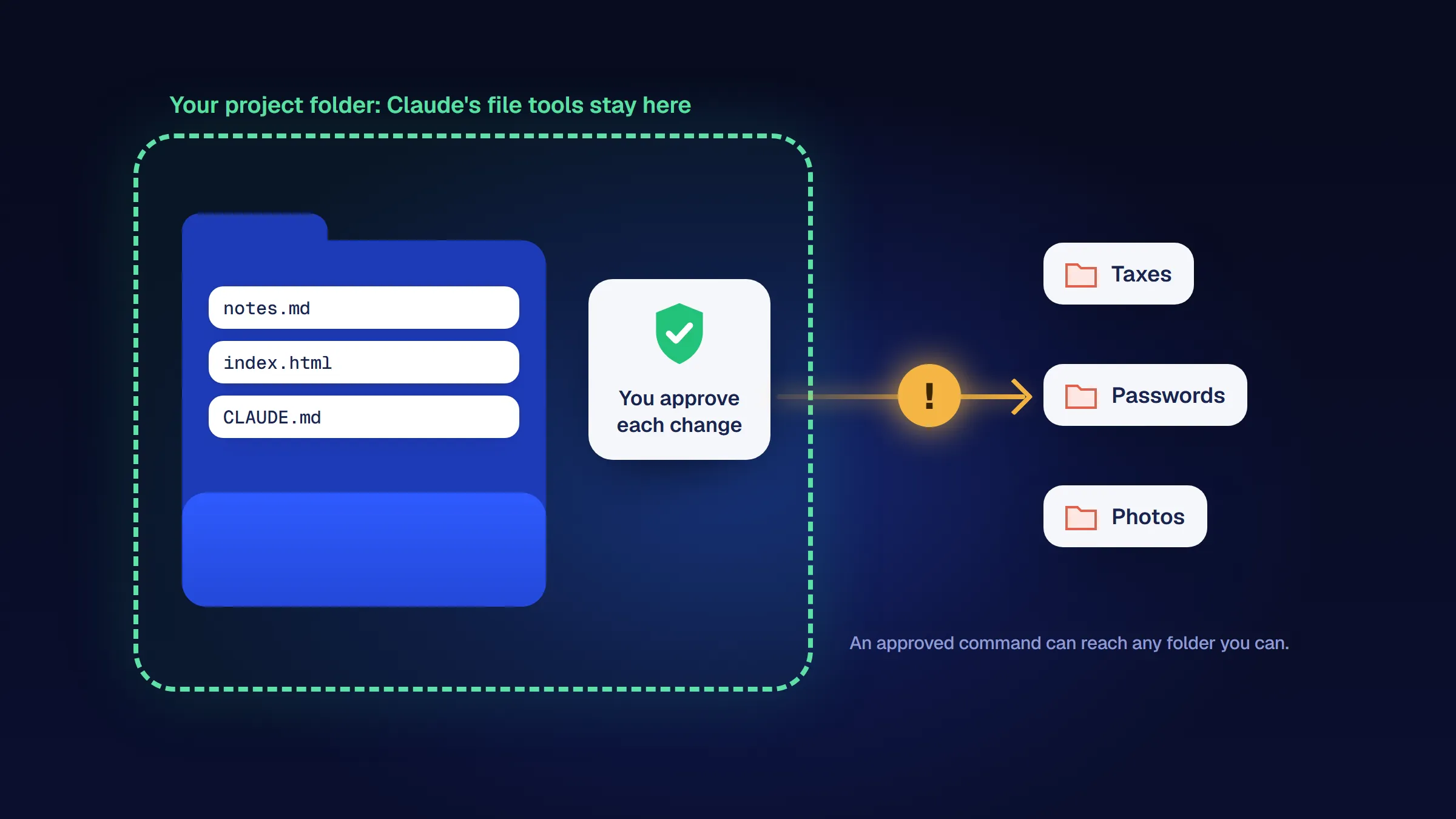
Make a safe business folder
A business folder with a backup copy, and Claude set to ask before it changes any file.
By the end of this lesson
- A new folder for the business exists, with a dated backup copy next to it.
- Claude has the working folder open and the mode is Manual.
- Claude asked before creating hello.md, and you accepted it.
Claude Code works on the files in one folder. Before it touches anything, you give it a folder of its own and a backup copy, and you make sure it asks before every change. Six minutes now saves you from the classic beginner scare: “what did it just change?”
Steps follow Anthropic's desktop quickstart and the Claude Code desktop docs, checked October 20, 2026.
Steps
Step 1: Create a new, empty folder for the business
Takes about 1 minIn your Documents folder, create a new folder named northside-bakery (or your business name, in lowercase with dashes). It must be new and empty, not your whole Documents folder or a folder full of contracts and tax files.
On Windows, open File Explorer, go to Documents, right-click an empty area and choose New, then Folder. On a Mac, open Documents in Finder and choose File, then New Folder. Don't use a Dropbox, OneDrive or Google Drive folder that holds other work.
You should see
An empty folder called northside-bakery (or your business name) in Documents.
Step 2: Make a backup copy
Takes about 1 minCopy the folder and paste it next to the original, then rename the copy with today's date, for example northside-bakery-backup-2026-10-20. On Windows, select the folder, press Ctrl + C, then Ctrl + V. On a Mac, right-click it and choose Duplicate. Make a fresh copy like this before every big change. It is the simplest undo there is, and lesson 6 shows you how to use it.
You should see
Two folders side by side: the working folder and the dated backup.
Step 3: Open the folder in Claude
Takes about 1 minIn the Claude desktop app, open the Code tab and start a new session (Ctrl + N on Windows, Cmd + N on a Mac). Keep Local in the first control under the prompt box. Click the folder control next to it, choose Open folder… and pick northside-bakery, the working folder, not the backup. In the earlier layout of the app, the folder button sits above the prompt box.
You should see
The app may ask whether you trust the files in this folder. It's your own new folder, so confirm. Then a new session opens in that folder, ready for your first message.
Stuck? Claude says it can't see my files
Check two things. You are in the Code tab, not in a chat. And the first control under the message box says Local, not a cloud environment: a cloud session runs on Anthropic's servers and can't see your computer.
Step 4: Switch to Manual mode
Takes about 1 minIn the same row under the prompt box there is a mode selector. Choose Manual. A new session may show another mode, such as Auto, so check it every time you open a new folder. The app remembers your choice for this folder. In Anthropic's words: “Claude asks before editing files or running commands. You see a diff and can accept or reject each change.”
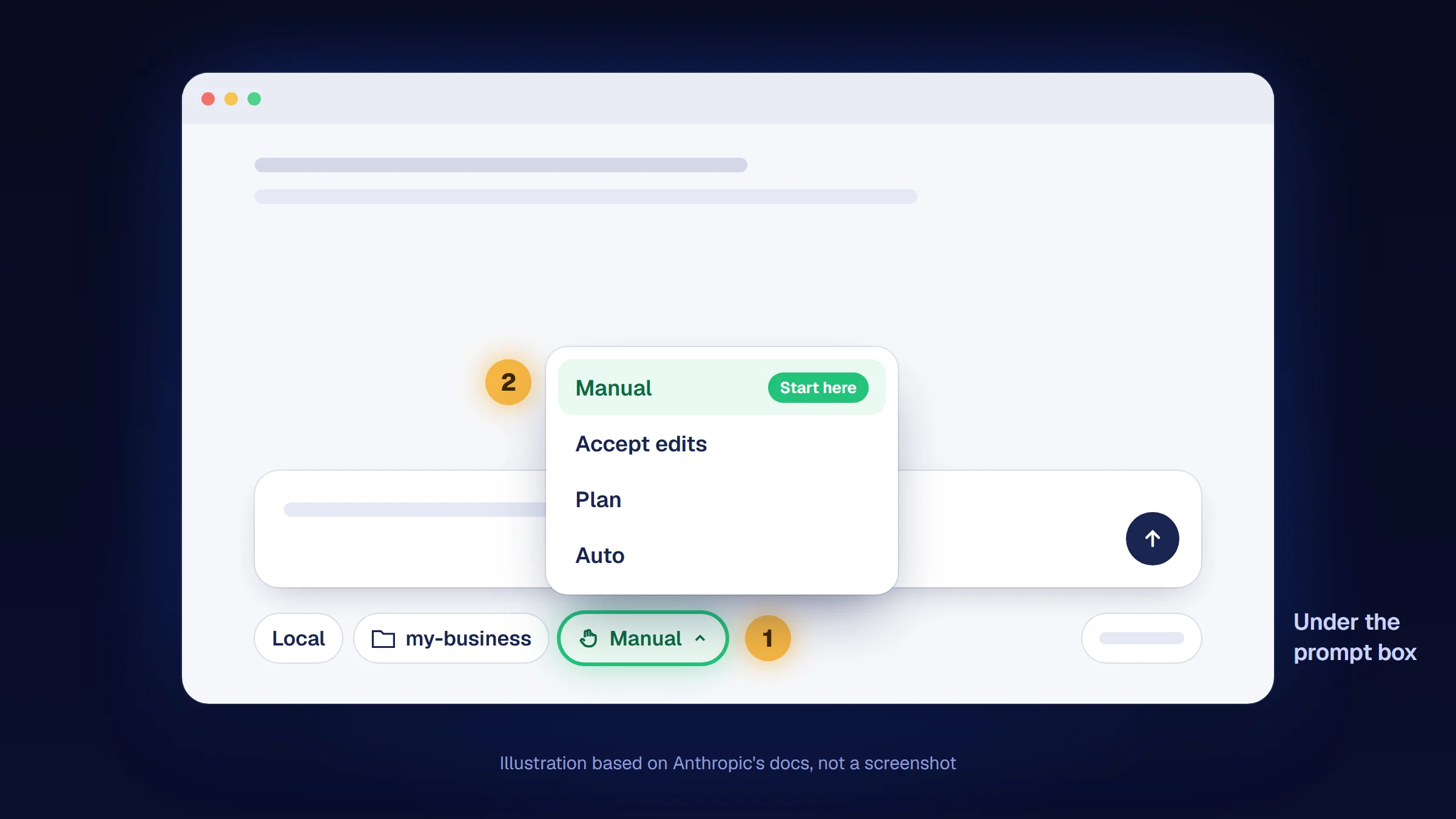
You should see
Manual on the mode selector in the row under the prompt box.
Stuck? There is no mode menu
Check that a folder is chosen (step 3) and that you are in the Code tab, not the regular chat.
Stuck? I can't find Manual
Earlier versions of the app called it Ask permissions. Pick that one: it is the same mode. Some guides call Manual “Default”. The other modes in the list (Accept edits, Plan and, if you see it, Auto) ask less often, so leave them for later.
Step 5: Test it: let Claude ask before its first change
Takes about 2 minFirst look at the mode name in the row under the prompt box: it must say Manual. Then type this request and send it:
Create a file called hello.md with one line: "Northside Bakery starts here."You should see
Claude shows the new file and waits with Accept and Reject. Nothing is saved until you choose. Choose Accept, and hello.md appears in your working folder, not in the backup.
Stuck? I see hello, not hello.md
Windows hides file extensions by default, so it is the same file. To see them in File Explorer on Windows 11, click View, then Show, then File name extensions. On Windows 10, open the View tab and tick File name extensions.
Stuck? The file appeared without Claude asking
The mode is not Manual. Delete hello.md, switch to Manual (step 4) and send the request again.
You're done when
- A new folder for the business exists, with a dated backup copy next to it.
- Claude has the working folder open and the mode is Manual.
- Claude asked before creating hello.md, and you accepted it.
All done? Go on to lesson 3: Give Claude your company memory.
Found a mistake? Report a mistake and we'll fix it.
All 6 lessons are open. No sign-up required. Want one Claude workflow for your business once a month? Get The Workfile Brief.