Home / The No-Code Claude Course / Lesson 1
Install Claude and pick the right plan
The Claude app on your computer, signed in on the right plan, with the Code tab open.
By the end of this lesson
- The Claude desktop app is installed on your computer.
- You are signed in on a paid plan (Pro or higher).
- The Code tab is open with Local selected.
In this module you build one real thing: a website for Northside Bakery, a made-up neighborhood bakery. Follow along with the bakery, or use your own business from the start, for example a hair salon, a bookkeeping practice or a bike shop. This first lesson only gets Claude ready on your computer.
Steps follow Anthropic's desktop quickstart and the Claude help center, checked October 20, 2026.
Steps
Step 1: Check your computer
Takes about 1 minYou need a computer with Windows 10 or newer, or macOS 13 (Ventura) or newer (Claude help: Installing Claude Desktop). No other software, and no terminal.
To check: on Windows, open Settings, then System, then About. On a Mac, open the Apple menu, then About This Mac.
You should see
Your computer runs Windows 10 or newer, or macOS 13 (Ventura) or newer.
Step 2: Pick a paid Claude plan
Takes about 2 minAnyone can install the app, including on the free plan, but the Code tab needs Pro, Max, Team or Enterprise: on the free plan you'll see an upgrade prompt. For one person, Pro is enough to start. If two or more people will use Claude for the business, look at Team.
You should see
A paid Claude plan chosen and subscribed, so the Code tab will open for you in step 4.
Step 3: Download and install the Claude desktop app
Takes about 2 minOpen Anthropic's desktop quickstart and download the installer for your computer, then run it.
On Windows
The quickstart lists an installer “for x64 processors”, which most computers need, and a separate ARM64 installer. The app is also available from the Microsoft Store. Open Claude from the Start menu.
On a Mac
One installer works on every Mac (the quickstart calls it a “Universal build for Intel and Apple Silicon”). If the download is a .dmg file, open it and drag Claude onto the Applications folder (Anthropic calls it “Drag-and-drop installation”). Then open Claude from your Applications folder.
You should see
Claude in your Start menu (Windows) or in your Applications folder (Mac).
Stuck? My Mac asks if I'm sure I want to open it
That is normal the first time you open an app downloaded from the internet. Choose Open.
Stuck? The installer is blocked on my work computer
Your company may control what you can install. Ask whoever manages the computer, or install Claude from the Microsoft Store if your company allows it.
Step 4: Sign in and open the Code tab
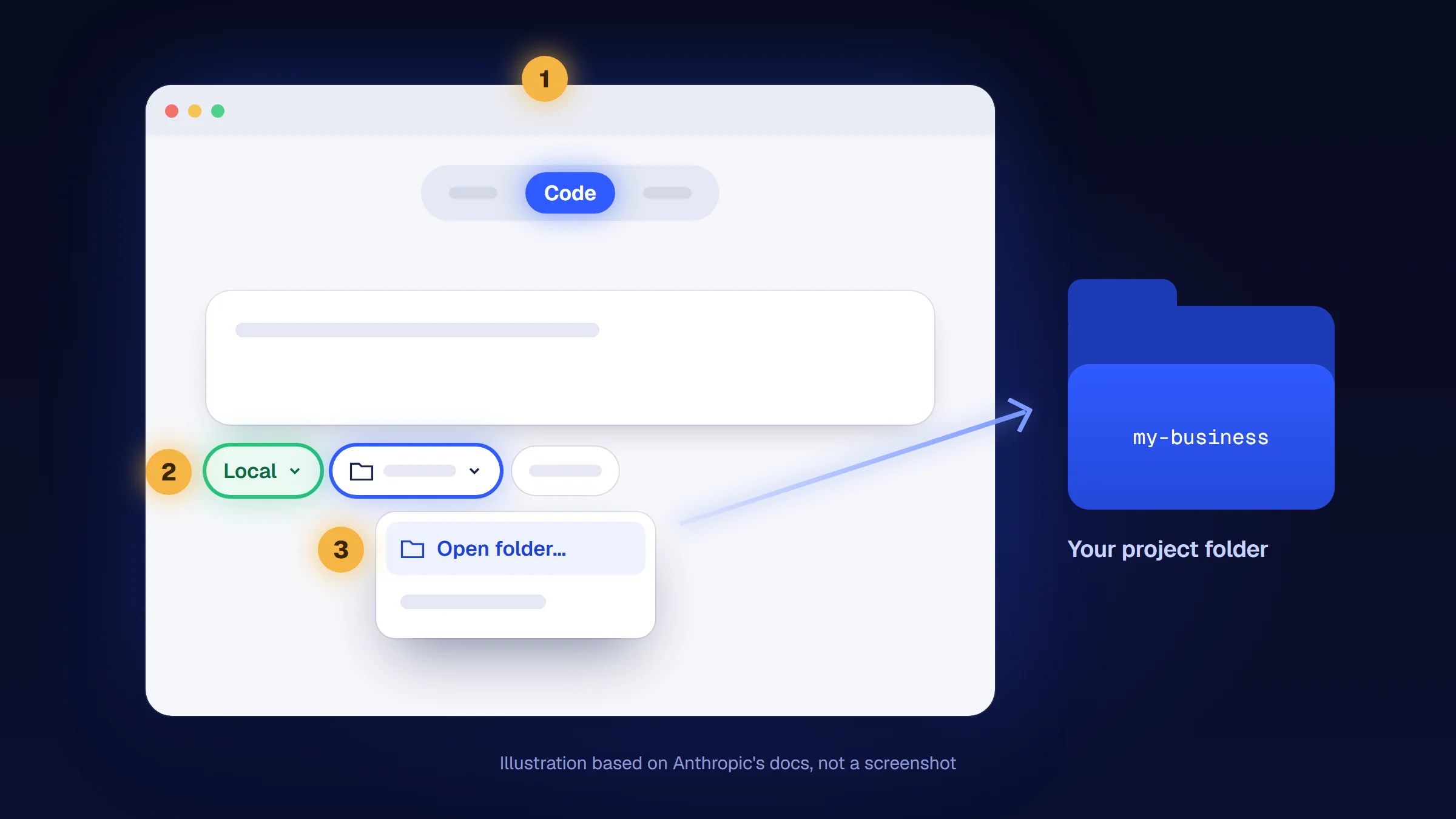
Takes about 1 minSign in with your Claude account. Then click the Code tab at the top center of the window.
You should see
A screen for a new session, with a choice of where Claude works. The one you need is your own computer, called Local. It is the first control in the row under the prompt box (step 5).
Stuck? It asks me to sign in online
Finish signing in in your browser, then quit Claude completely and open it again.
Stuck? Clicking Code asks me to upgrade
Your account is on the free plan. Subscribe to a paid plan (step 2), then sign out and back in, and open the Code tab again.
Stuck? I don't see a Code tab
Update the app first: on Windows click Help, then Check for Updates…; on a Mac click Claude in the menu bar, then Check for Updates…. Restart Claude and look again. If you see an error such as “Error 403: Forbidden”, sign out and back in.
On a Team or Enterprise plan, an admin can turn off Claude Code in the desktop app for the whole company. If the update doesn't help, ask whoever manages your Claude account.
Step 5: Choose Local, and stop there
Takes about 1 minUnder the prompt box there is a row of controls. Click the first one, the environment selector, and choose the top option under Local: Anthropic describes Local as working “on your machine with direct access to your files”. Don't pick a folder yet. In the next lesson you create a safe folder for the business first.
You should see
Local in the first control under the prompt box, and next to it a control for the folder. That is exactly where lesson 2 starts.
Stuck? Local isn't in the row under the prompt box
You have the earlier layout of the app, where Local and the folder sit above the prompt box. Choose them there, or update the app (see “I don't see a Code tab” above).
You're done when
- The Claude desktop app is installed on your computer.
- You are signed in on a paid plan (Pro or higher).
- The Code tab is open with Local selected.
All done? Go on to lesson 2: Make a safe business folder.
Found a mistake? Report a mistake and we'll fix it.
All 6 lessons are open. No sign-up required. Want one Claude workflow for your business once a month? Get The Workfile Brief.