Home / The No-Code Claude Course / Lesson 3
Give Claude your company memory
A one-page memory file (CLAUDE.md) about your business that Claude reads at the start of every session.
By the end of this lesson
- CLAUDE.md is in your working folder, with five to ten lines about the business.
- In a fresh session, Claude described the business correctly without you telling it.
- Your first permanent rule was added to CLAUDE.md by a correction.
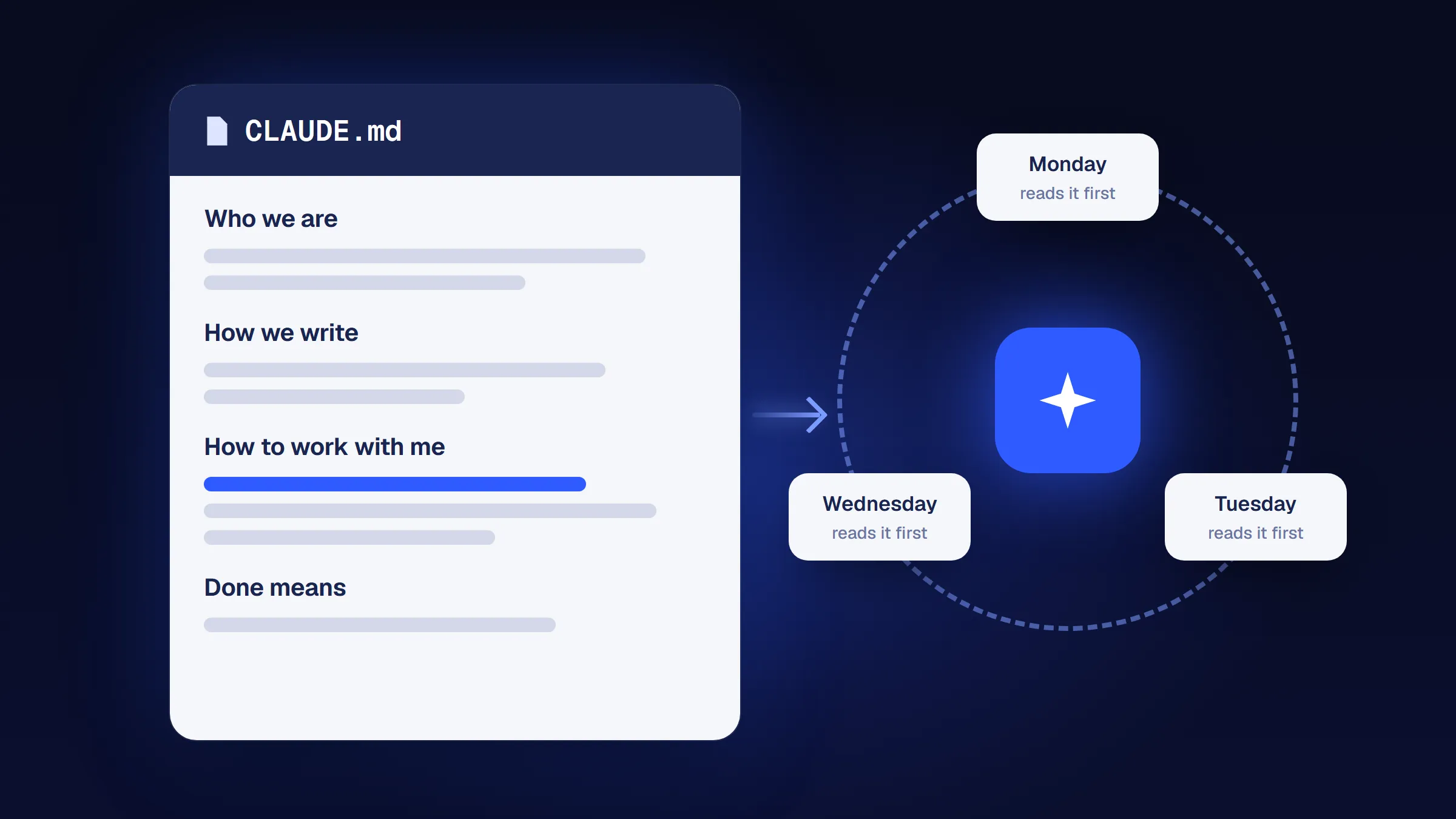
A new session doesn't carry over your previous conversation. What Claude does read at the start of every session is CLAUDE.md, a short file you write. Anthropic describes these files as “instructions you write to give Claude persistent context” and says “Claude reads them at the start of every session”. (Claude can also keep its own notes, called auto memory; CLAUDE.md is the part you control.) Think of it as the onboarding sheet you would give a new hire. In this lesson you write it for Northside Bakery, so you never have to explain the business again.
Facts follow Anthropic's Claude Code memory docs, checked October 20, 2026.
Steps
Step 1: Decide what Claude must always know
Takes about 2 minOnly what Claude can't guess and what matters in almost every task. For the bakery that is:
- what the business sells and who buys;
- the facts every page needs (hours, address, phone);
- how you write;
- how you want Claude to work with you.
Your own business? Write the same four things down in plain sentences. Five to ten lines is plenty.
You should see
Four short points about your business, written in your own words.
Step 2: Ask Claude to create CLAUDE.md
Takes about 2 minOpen your business folder in the Code tab (Manual mode, as in lesson 2) and send this:
Create a file called CLAUDE.md with exactly these lines:

# Northside Bakery
We sell sourdough bread and pastries to neighbors and office workers, mostly in the mornings.
Open 7 am to 3 pm. Address: 214 Elm Street. Phone: (555) 014-2290.
Orders are for pickup only. We never offer delivery.
Tone: warm, short sentences, no hype.
How to work with me: show me a short plan before any big change, and never move or delete files without asking.
Using your own business? Fill in the brackets in this version and send it instead:
Create a file called CLAUDE.md with exactly these lines:

# [Business name]
We sell [what] to [who], mostly [when or where].
Open [hours]. Address: [address]. Phone: [phone].
We never [one thing customers ask for that you don't do].
Tone: [three words], short sentences, no hype.
How to work with me: show me a short plan before any big change, and never move or delete files without asking.
You should see
Claude shows the new file and waits for you. Choose Accept, and CLAUDE.md appears in the folder next to hello.md.
Step 3: Start a fresh session in the same folder
Takes about 1 minThe test only counts in a new session, because that is when Claude reads CLAUDE.md again. Start a new session: click + New in the sidebar, or press Ctrl + N on Windows or Cmd + N on a Mac, and choose the same northside-bakery folder.
You should see
An empty conversation in the same folder, with none of the earlier messages.
Stuck? I land in my old conversation
Press Ctrl + N (Cmd + N on a Mac). If the new session has no folder, choose northside-bakery again in the row under the prompt box before you type.
Stuck? I don't know how to start a new session
Close the Claude app completely, open it again, go to the Code tab and choose the same folder. Check that the conversation is empty before you test.
Step 4: Test the memory
Takes about 2 minWithout telling Claude anything about the bakery, ask:
What does my business do, when are we open, and how should you write for us?You should see
An answer that mentions sourdough and pastries, 7 am to 3 pm, pickup only and a warm, short tone, all taken from your file.
Stuck? Claude says it doesn't know the business
Check that CLAUDE.md is in the folder you opened (not in the backup) and that its name is exactly CLAUDE.md. Then start a fresh session again. On Windows the file may show as just CLAUDE: file extensions are hidden (see lesson 2).
Step 5: Add your first rule by correcting Claude
Takes about 1 minThe file grows when Claude gets something wrong that it should always know. Practice once, and say the rule is permanent:
From now on, every page and post must say "Order by phone for pickup". This is a permanent rule: add it to CLAUDE.md.Claude reads this rule in every session and follows it almost always, but Anthropic calls these files context, not enforced rules. For anything that must be right, like prices, still check the page yourself.
You should see
Claude shows a change to CLAUDE.md with your new rule and waits. Accept it, and the rule is the last line of the file.
Stuck? I want to read the file myself
On Windows, right-click CLAUDE.md and choose Open with, then Notepad. On a Mac, right-click it and choose Open With, then TextEdit.
You're done when
- CLAUDE.md is in your working folder, with five to ten lines about the business.
- In a fresh session, Claude described the business correctly without you telling it.
- Your first permanent rule was added to CLAUDE.md by a correction.
All done? Go on to lesson 4: Build your first website in 20 minutes.
Found a mistake? Report a mistake and we'll fix it.
Claude remembers your business now. Keep it that way.
Claude's app changes often. The Workfile Brief comes once a month: one Claude change that matters to a small business, one prompt to copy for a real task, and any lesson we fixed because of it. A 3-minute email.