Home / The No-Code Claude Course / Lesson 4
Build your first website in 20 minutes
A one-page website for your business, built with the interview, plan, build and check method.
By the end of this lesson
- index.html opens in your browser from your business folder.
- All eight customer questions are answered yes.
- Nothing on the page is made up: no invented menu, prices or reviews.
Now Claude builds something real: a one-page website for Northside Bakery. You won't write code. You brief, decide and check. Claude already knows the bakery from CLAUDE.md (lesson 3), so the brief is short.
App behavior follows the Claude Code desktop docs, checked October 20, 2026.
Steps
Step 1: Let Claude interview you first
Takes about 3 minWeak results come from gaps in the brief: when something is missing, the model fills it with the most average guess. Close the gaps before anything is built.
I want a one-page website for my business. Use what you know from CLAUDE.md. Before you build anything, ask me up to 3 questions about what you still need to know.You should see
Up to three questions, often with suggested answers. Pick one or answer in your own words.
Step 2: Ask for a plan and read it
Takes about 3 minNow write a short plan: the sections of the page, the files you will create, and how I can check that it works. Don't build yet.Read the plan. If a section is wrong or missing, say so now: one wrong line in the plan becomes many wrong lines in the result.
Prefer a safety net? Switch the mode to Plan for this step: in Plan, Claude proposes a plan without editing your files. Switch back to Manual before step 3.
You should see
A short plan from Claude: the sections of the page, the file it will create and anything it still needs from you.
Step 3: Build the simplest version that works
Takes about 3 minBuild it as a single file, index.html, with the styles inside. Keep it simple. When you are done, tell me exactly how to open it and what you had to guess.Claude shows the whole file and waits. You don't need to read the code: check the file name and choose Accept.
You should see
A new index.html in your business folder, after you accept the change.
Stuck? Claude asks to start a preview or run a command
Claude often checks its own work: it may ask to start a local preview and open the page in the app's Browser pane. That stays on your computer, so you can allow it. Deny anything that installs software or works outside your business folder.
If a .claude folder with settings appears in your business folder, leave it there. It never goes online (lesson 5).
Stuck? Claude stops with “You've hit your session limit”
Nothing is broken: your plan includes a set amount of use, and you have used it for now. The message shows when it comes back, for example “resets 3:45pm”. A weekly limit shows a day instead, such as “resets Mon 12:00am”.
Wait until that time. On the session limit card (not the weekly one) you can tick Auto-continue when limits reset, and Claude picks the task up again by itself. To see how much you have left before it happens, click the small usage ring next to the model picker.
Step 4: Open the page
Takes about 1 minDouble-click index.html in your business folder. It opens in your browser, from your own computer: nobody else can see it yet (that is lesson 5).
You should see
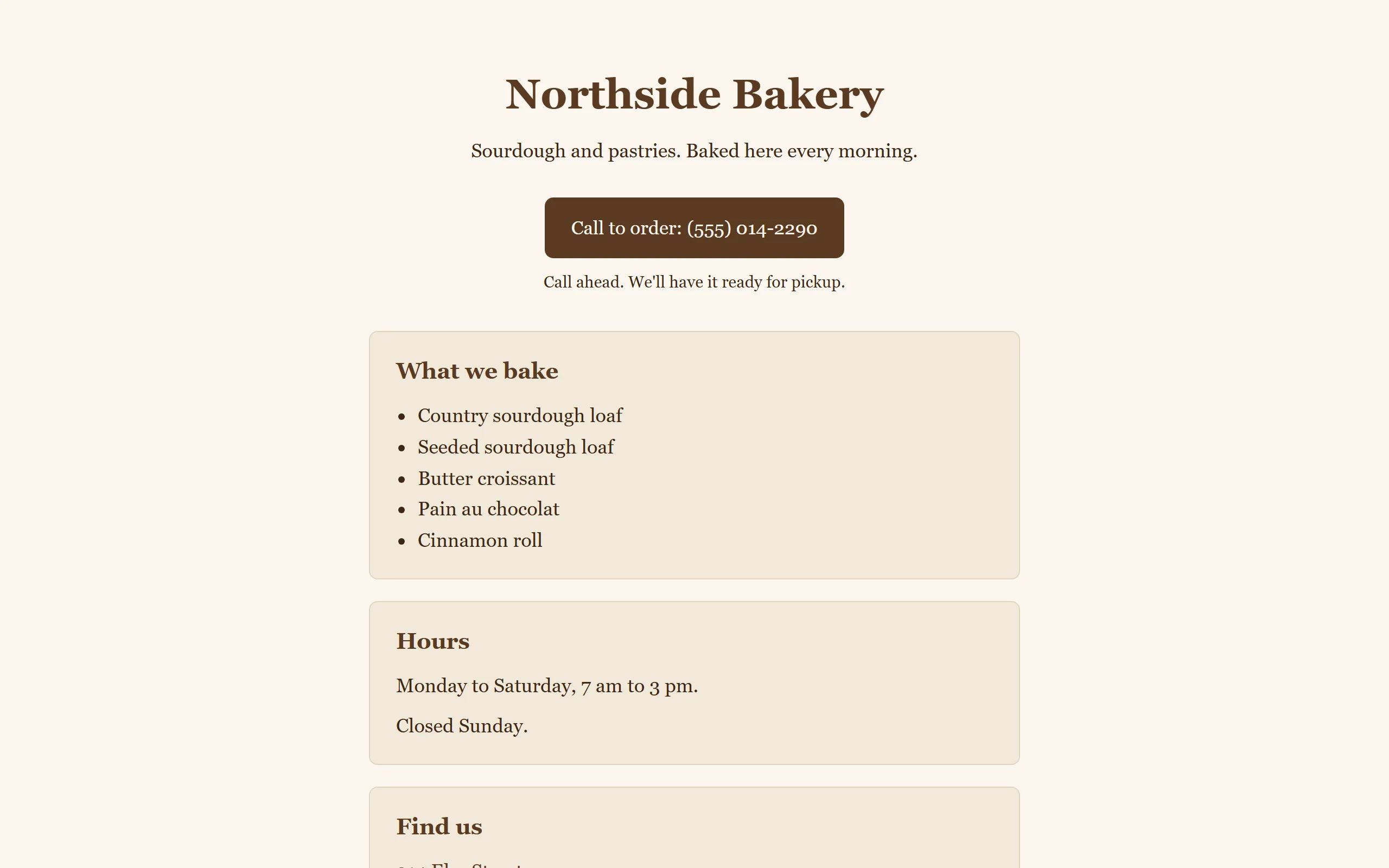
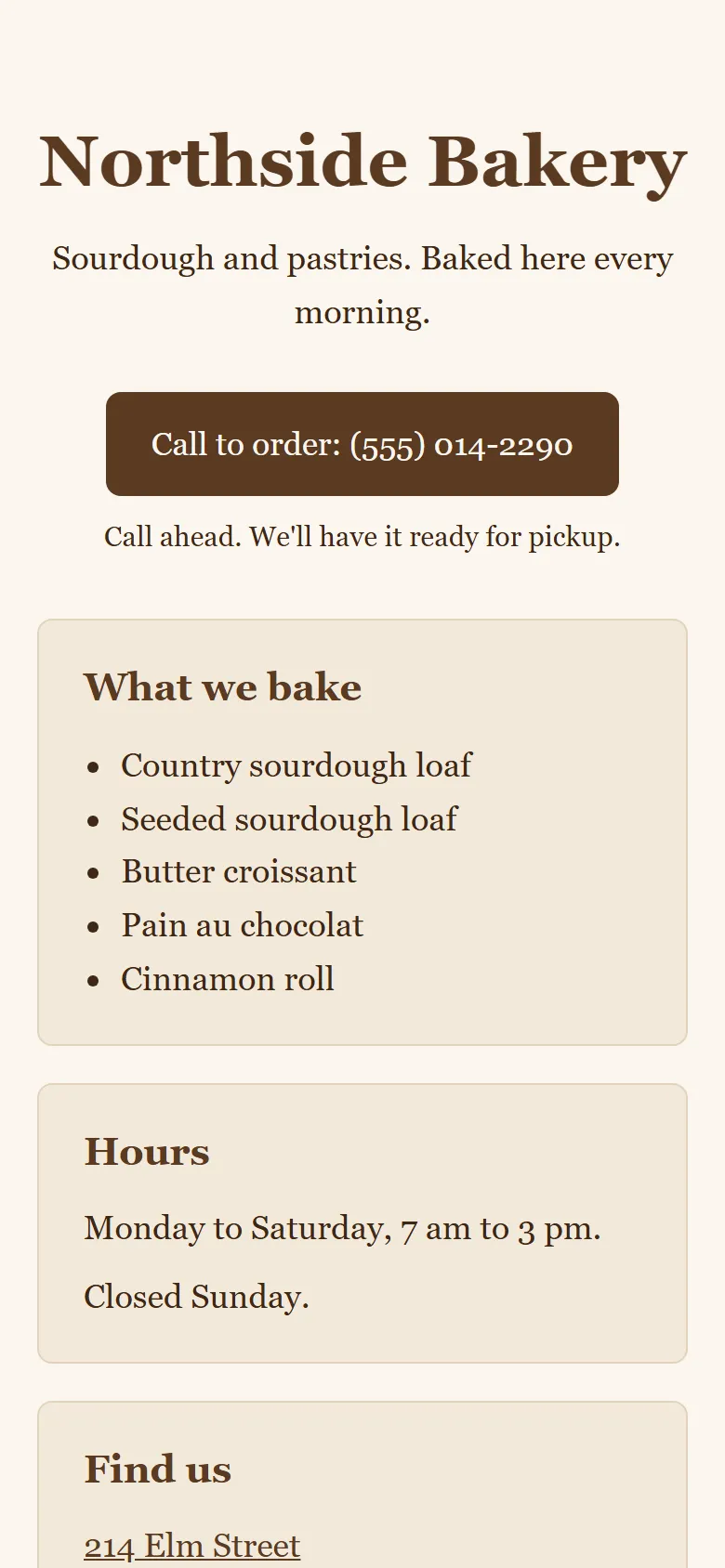
Step 5: Check it like a customer: 8 yes-or-no questions
Takes about 5 minDon't ask Claude “is it good?”: it will say yes. Answer these yourself, yes or no:
- Would a new customer know in five seconds what we sell?
- Can I see the opening hours without scrolling much?
- Are the address and phone number exactly right?
- Is “Order by phone for pickup” easy to find?
- Does the page say nothing about delivery?
- Is everything on it true, with no made-up menu items, prices or reviews?
- Does it sound like us, not like an ad?
- Does it still look fine when I make the browser window narrow, like a phone?
Using your own business? Replace questions 4 and 5 with: “Is the one action I want from a customer (call, book, visit) easy to find?” and “Does the page promise nothing we don't do?”
You should see
Eight answers, yes or no. Every no is a small fix for step 6.
Step 6: Fix every no with one small request
Takes about 5 minOne change per message, and say what must stay the same:
The phone number is too far down. Move it into the top section, next to the order button. Don't change anything else.Made-up menu items? Give Claude the real list, or ask it to remove the menu until you have one. Then reload the page in your browser (F5 on Windows, Cmd + R on a Mac) and repeat the eight questions until every answer is yes.
You should see
Every no from step 5 turned into a yes, one small request at a time.
Stuck? Claude doesn't answer or shows an error
Check status.claude.com to see whether Claude is having problems. Your files are safe in your folder: wait a little and try again.
Watch a real session with the same bakery (terminal version)
We recorded this session in the terminal version of Claude Code. In the desktop app the prompts are the same and the approval buttons look different.
You're done when
- index.html opens in your browser from your business folder.
- All eight customer questions are answered yes.
- Nothing on the page is made up: no invented menu, prices or reviews.
All done? Go on to lesson 5: Put it online for free.
Found a mistake? Report a mistake and we'll fix it.
All 6 lessons are open. No sign-up required. Want one Claude workflow for your business once a month? Get The Workfile Brief.