Home / Guides / How to use Claude Code
How to use Claude Code if you don't code
Claude Code is Anthropic's AI agent that works with the files on your computer. You describe the result in plain English; it reads your files, creates new ones and runs the steps, asking you before it changes things. This guide shows how to use Claude Code step by step: from zero to a working first project in about 20 minutes, then how to make Claude remember your business. Want a structured path? The same method is taught step by step in our Claude Code course for business owners.
Recorded on October 17, 2026 with Claude Code 2.1.302The recording and result screenshots are from a real session, not a mockupLast checked on October 20, 2026 for the desktop app steps, on October 18, 2026 for prices and plans, on October 17, 2026 for everything else, against Anthropic's official pages
What changed in this guide
- : Added two questions to the FAQ: how Claude Code works, and what to do with the files it makes. The desktop app's text field is now called the prompt box, as in Anthropic's docs.
- : Desktop app: Local, the folder (Open folder…) and the mode selector now sit in the row under the prompt box, as in Anthropic's current quickstart. New illustrations; the old keyboard shortcut for the mode menu is gone from the docs.
- : Desktop app: picking your folder and Local now match both the older screen and the new session screen from mid-October (recent folders, environments).
- : Desktop app steps updated to the current app: Microsoft Store install, the folder trust question, mode names (Manual, Accept edits, Plan, Auto) and the optional Bypass permissions mode.
- : Team price now shows the monthly price too ($25 per person, or $20 billed annually), matching Anthropic's pricing page.
- : The desktop app is now the main path; the terminal is an option for those who want it.
- : Added a recorded real session, result screenshots, progress tracking and a self-check.
- : First version, checked against Anthropic's documentation.
Found a mistake? Report a mistake and we'll fix it.
In short
- You need a paid Claude plan (Pro or higher). The free plan doesn't include Claude Code.
- Easiest start: the Claude desktop app, Code tab, no terminal. Or install the command-line version with one command.
- Make a folder for your business and open Claude Code in it. Start in Manual mode.
- Describe the result, let Claude ask questions, read its plan, then approve step by step.
- Write a short CLAUDE.md so Claude remembers your business in every session.
What is Claude Code, in plain English?
The regular Claude chat gives you text that you copy somewhere. Claude Code does the work where your work lives: in a folder on your computer. Ask for a one-page website and you get the actual files. Ask it to turn three messy spreadsheets into one monthly summary and it opens them, writes the summary and tells you where it saved it.
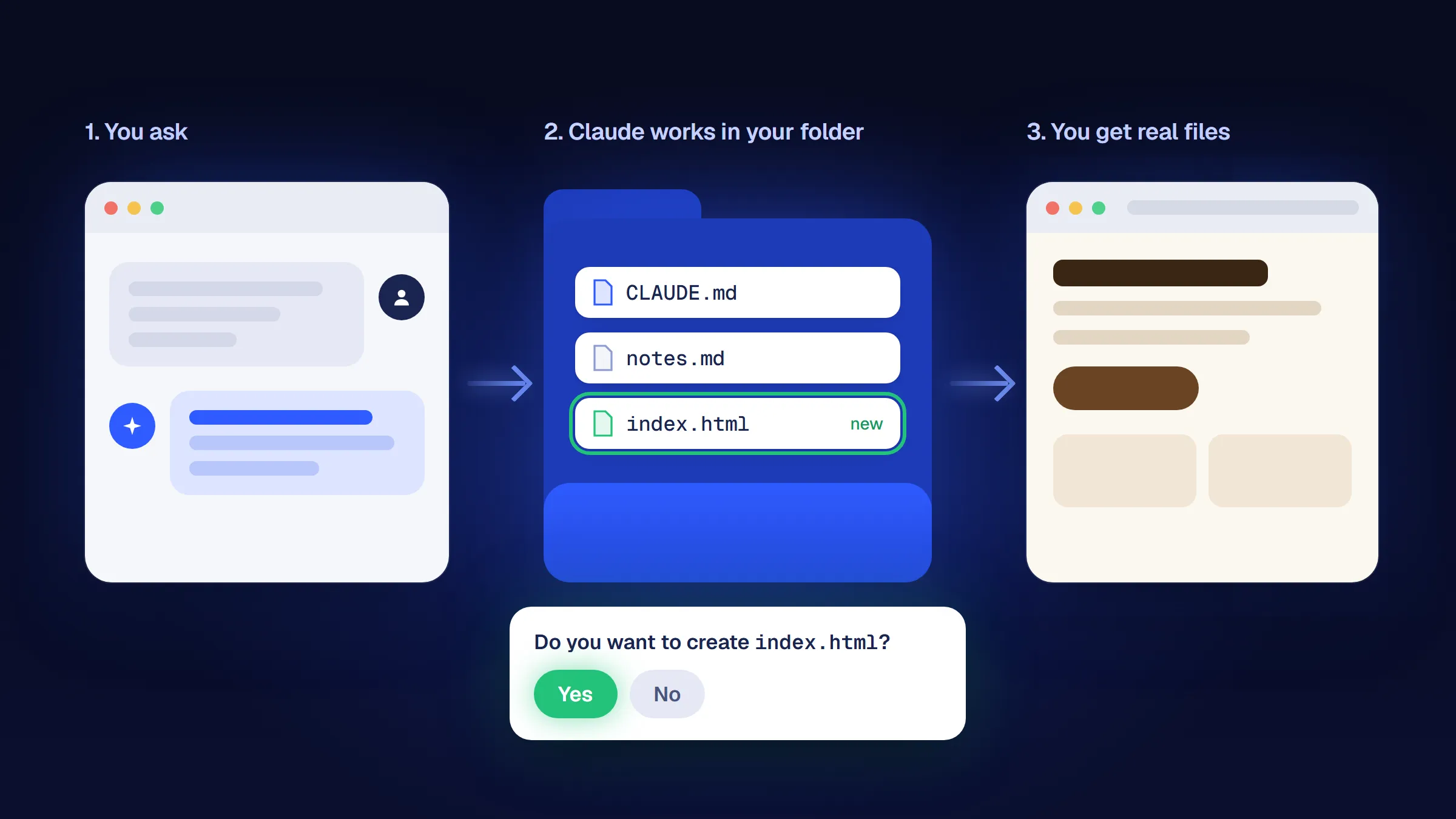
Anthropic calls it an “agentic coding tool”, but coding is only part of it: the docs say it can help with anything you can do from the command line, from writing documents to searching files and researching topics. For a business owner, good first jobs are:
- a simple website or landing page;
- product descriptions or emails written in your tone, from your notes;
- a weekly report built from spreadsheets you already have;
- sorting, renaming and summarizing a folder of documents;
- small tools: a price calculator, a checklist, a booking page draft.
Bad first jobs: anything you can't check yourself, and anything that touches money, customers or live systems without your review.
Claude Code vs the Claude app vs Cowork: which one do you need?
Anthropic offers the same agent technology in several places, and the names changed in 2026. In September, Anthropic announced that Cowork and chat are merging into one Claude app. Here is the practical difference:
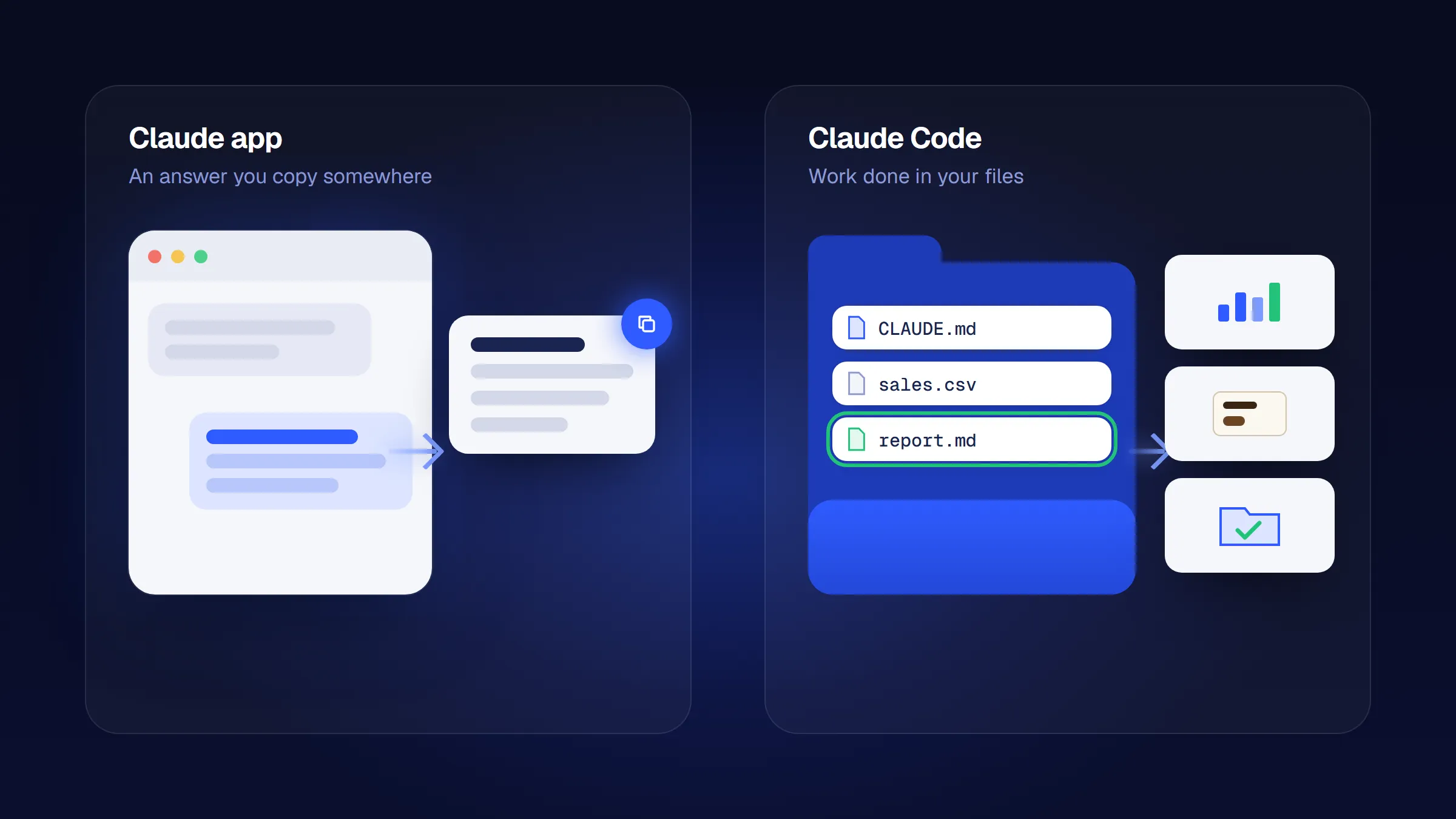
| Compare | Claude app (chat, incl. former Cowork) | Claude Code |
|---|---|---|
| Best for | Questions, writing, documents, spreadsheets and slides, multi-step office tasks | Building things from files: websites, reports, automations, small tools |
| Works on | Conversations, uploads and files you share | A project folder on your computer, plus commands it runs there |
| Where | Web, desktop and mobile apps | Desktop app (Code tab), terminal, VS Code, JetBrains, web |
| Memory | Projects and settings in the app | CLAUDE.md files in your folder |
| Plan needed | Chat on free and paid plans; agent features roll out to paid plans first | Paid plans only (Pro and up) |
Our rule of thumb: if the result is a conversation or a single document, use the Claude app. If the result is a set of files you will keep improving, use Claude Code. Many people use both. More on the agent side of the app, and on where Cowork went after the merger, in what is Claude Cowork and what changed in September 2026.
What do you need to use Claude Code?
- A paid Claude plan. Pro is enough to start. Details in costs and limits.
- A computer: Windows 10 (1809 or newer) or Windows 11, or macOS 13 or newer. At least 4 GB of RAM and an internet connection.
- A new, empty folder for your first project, for example
Documents\my-business. - 20 minutes and five lines of notes about your business.
You don't need Node.js or a terminal: the desktop app includes Claude Code. Older guides that start with “install Node.js” describe a route you no longer need.
How do you install Claude Code on Windows and Mac?
The easiest way is the Claude desktop app. It includes Claude Code, so you don't need a terminal, Node.js or anything else. It takes two steps.
Desktop app steps follow Anthropic's desktop quickstart, checked October 17, 2026.
Step 1: Download and install the Claude desktop app
Takes about 3 minOpen Anthropic's desktop quickstart, download the installer for your computer and run it.
On Windows
Most Windows computers need the installer for x64 processors. There is a separate one for ARM64 computers, and the app is also available from the Microsoft Store. When it is installed, open Claude from the Start menu.
On a Mac
One installer works on every Mac (Intel and Apple Silicon). When it is installed, open Claude from your Applications folder.
Step 2: Sign in and open the Code tab
Takes about 1 minSign in with your Claude account, then click the Code tab at the top center of the window.
You should see
A screen for a new session, with a choice of where Claude works. The one you need is Local (your computer); in newer versions it may sit in a menu of environments. You pick it in the next section.
Stuck? It says you need to subscribe to a paid plan first
Your account is on the free plan, which doesn't include Claude Code. Pro is enough to start; see costs and limits.
Prefer the terminal? Install the command-line version instead
The command-line version runs in a terminal, the text window that comes with your computer. The recorded session in this guide uses it. One command installs it, and that version updates itself.
Terminal step 1: Open a terminal
Takes about 1 minOn Windows
Press Win + X and choose Terminal (or Windows PowerShell). The line must start with PS C:\. If it starts with just C:\, you are in the older Command Prompt; see “Stuck?” below.
On a Mac
Press Cmd + Space, type Terminal and press Enter.
Terminal step 2: Paste the install command
Takes about 2 minOn Windows
Copy the command, paste it into the terminal (Ctrl + V or right-click) and press Enter:
irm https://claude.ai/install.ps1 | iexIn plain words: irm downloads Anthropic's installer and iex runs it. You don't need administrator rights. The installer shows no progress while it downloads, so give it a minute.
Stuck? irm is not recognized
You are in the Command Prompt (CMD), not PowerShell. Use this command instead:
curl -fsSL https://claude.ai/install.cmd -o install.cmd && install.cmd && del install.cmdStuck? The token '&&' is not a valid statement separator
You pasted the CMD command into PowerShell. Use the irm command above.
Stuck? does not support 32-bit Windows
You opened “Windows PowerShell (x86)”. Open the PowerShell entry without “(x86)”.
Stuck? An SSL or TLS error on an older Windows 10
Run this first, then the install command again in the same window:
[Net.ServicePointManager]::SecurityProtocol = [Net.SecurityProtocolType]::Tls12Prefer the Windows package manager? winget install Anthropic.ClaudeCode works too, but that version doesn't update itself: run winget upgrade Anthropic.ClaudeCode from time to time.
On a Mac
Copy the command, paste it into Terminal (Cmd + V) and press Enter:
curl -fsSL https://claude.ai/install.sh | bashIn plain words: curl downloads Anthropic's installer and bash runs it. It shows no progress while it downloads, so give it a minute. If you use Homebrew, brew install --cask claude-code also works, but then you update it yourself with brew upgrade claude-code.
Stuck? dyld
Your macOS is older than version 13. Update macOS first.
Terminal step 3: Check that it works
Takes about 1 minClose the terminal and open a new one (the new window knows about the new program), then type:
claude --versionYou should see
On Windows
A version number followed by (Claude Code). On our test machine: 2.1.302 (Claude Code).
On a Mac
A version number followed by (Claude Code), for example 2.1.302 (Claude Code).
On Windows
Stuck? 'claude' is not recognized
Open a new terminal window first. Still failing? Run claude doctor. If that is not recognized either, add the install folder to your PATH, then open a new window:
$currentPath = [Environment]::GetEnvironmentVariable('PATH', 'User')
[Environment]::SetEnvironmentVariable('PATH', "$currentPath;$env:USERPROFILE\.local\bin", 'User')
On a Mac
Stuck? command not found: claude
Open a new Terminal window first. Still failing? Add the install folder to your PATH:
echo 'export PATH="$HOME/.local/bin:$PATH"' >> ~/.zshrc
source ~/.zshrc
More fixes: Anthropic's install troubleshooting.
Never used a terminal before? Anthropic has a short terminal guide for new users. All known install errors are also collected in common errors.
How to use Claude Code: your first session
Desktop app steps follow Anthropic's desktop quickstart, checked October 20, 2026.
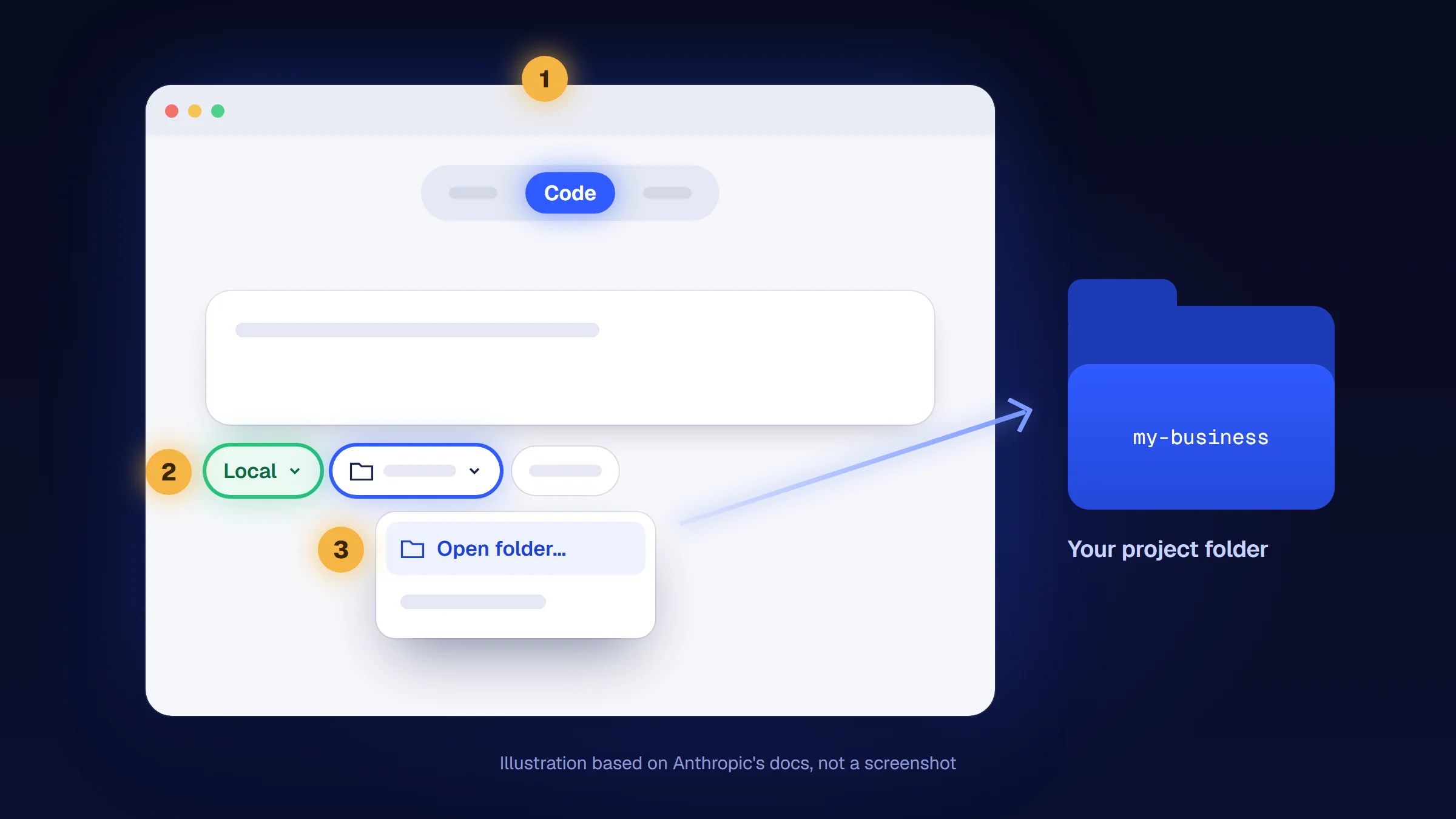
Step 1: Choose Local and select your business folder
Takes about 1 minIn the Code tab, look at the row of controls under the prompt box. In the first one, choose Local so Claude works with the files on your computer. Then click the folder control next to it, choose Open folder… and pick the folder you made for your first project. (In the earlier layout of the app, these choices sit above the prompt box.) Choose only a folder of your own: Claude can read and change everything in it. The app may ask whether you trust the files in this folder. It's your own folder, so confirm.
Step 2: Switch to Manual mode
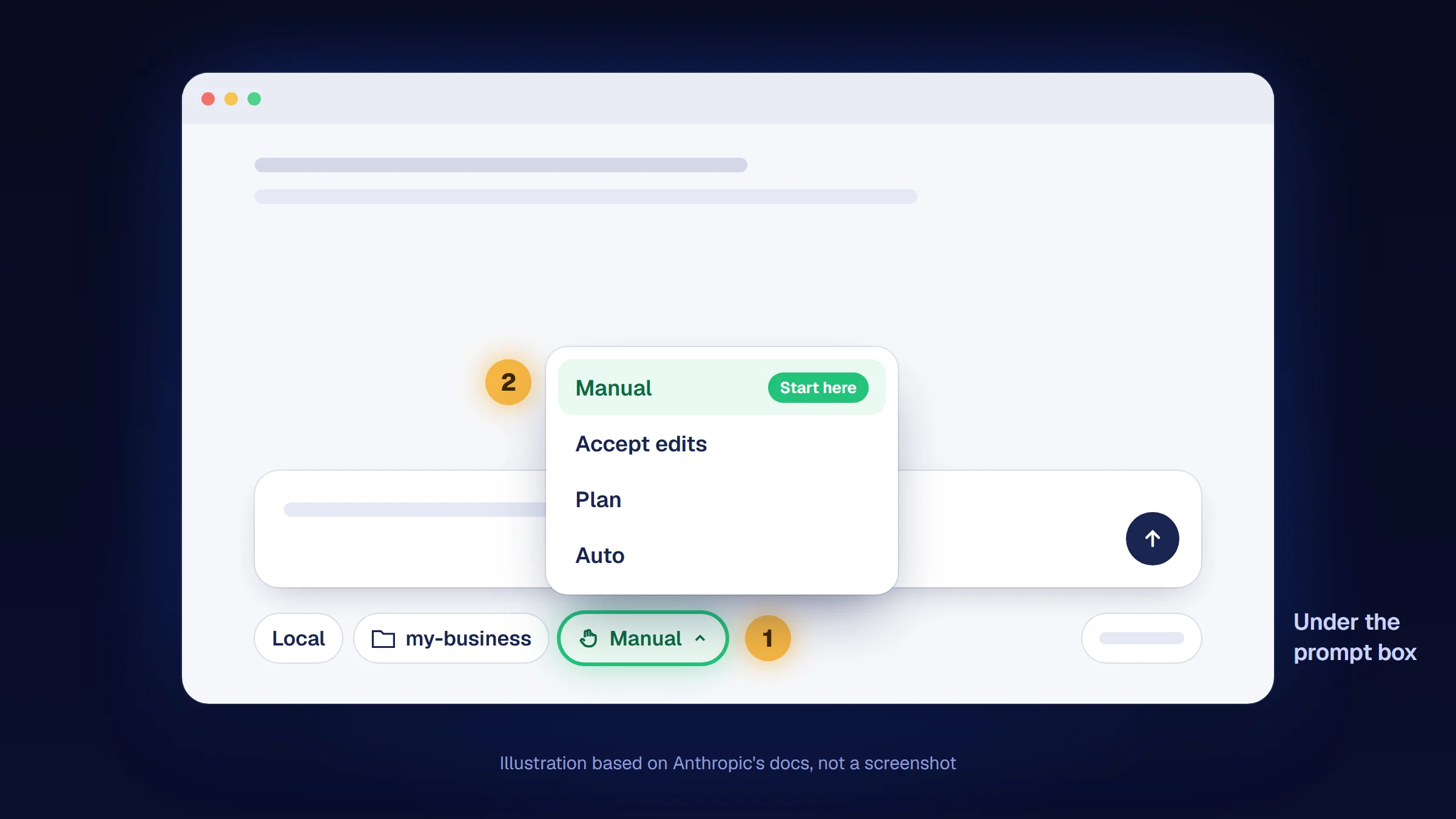
Takes about 1 minClick the mode selector in the row under the prompt box and choose Manual. A new session may show another mode, such as Auto, so check it. The app remembers your choice for the folder. Earlier versions of the app call this mode Ask permissions, and some guides call it Default.
Why Manual? See the next section. Useful controls from now on:
| In the desktop app | What it does |
|---|---|
Stop button or Esc | Stops Claude in the middle of a task. |
| + New session | Starts a fresh conversation in the same folder. Earlier sessions stay in the sidebar. |
The +12 -1 counter | Opens the list of files Claude changed and what changed in each. |
| The ring next to the model picker | Shows how full the conversation is and how much of your plan's limit you have used. |
| A file name in Claude's answer | Click an HTML, PDF or image file to preview it next to the chat. |
Now type your first message in the box at the bottom and press Enter. Your first project starts below.
Using the terminal version? Your first session there
Terminal step 1: Open your business folder in the terminal
Takes about 1 minOn Windows
Windows 11: open the folder in File Explorer, right-click an empty area and choose Open in Terminal. Windows 10: hold Shift, right-click an empty area and choose Open PowerShell window here.
On a Mac
In Terminal type cd (with a space), drag the folder into the window and press Enter.
Terminal step 2: Start Claude Code and trust the folder
Takes about 1 minclaudeClaude Code first asks whether you trust this folder:
The screen says Quick safety check: Is this a project you created or one you trust? and offers two choices: No, exit (selected first) and Yes, I trust this folder. Press the Down arrow once, then Enter. Only do this for your own folder.
Stuck? Claude Code closed right away
You pressed Enter on No, exit. Type claude again and select Yes, I trust this folder with the Down arrow first.
Terminal step 3: Sign in
Takes about 1 minThe first time, a browser window opens so you can sign in with your Claude account. If it doesn't, press c to copy the sign-in link and open it yourself.
Stuck? 403 Request not allowed
Your account has no plan that includes Claude Code (the free plan doesn't), or a company network blocks the request. Check your subscription at claude.ai/settings.
Stuck? “Invalid code” or the sign-in keeps looping
The code expired before you pasted it. Press Enter to try again and finish quickly, or press c to copy the link.
Terminal step 4: Switch to Manual mode
Takes about 1 minPress Shift + Tab and watch the line under the box where you type, until it says manual mode on. (In some Windows terminals the shortcut is Alt + M.)
You should see
At the top: Claude Code, its version and your folder name. Under the box where you type: ⏸ manual mode on.
Useful keys in the terminal version:
| Key or command | What it does |
|---|---|
Esc | Stops Claude in the middle of a task. |
Esc twice | With the typing box empty: opens rewind, to undo Claude's file edits back to an earlier message. |
Shift+Tab | Switches the permission mode. |
/clear | Starts a fresh conversation in the same folder. |
/memory | Shows CLAUDE.md and Claude's own notes. |
/usage | Shows how much of your plan's limit you have used. |
/exit | Closes Claude Code. |
claude --continue | Typed in the terminal: reopens your last session. |
How much can Claude Code do without asking?
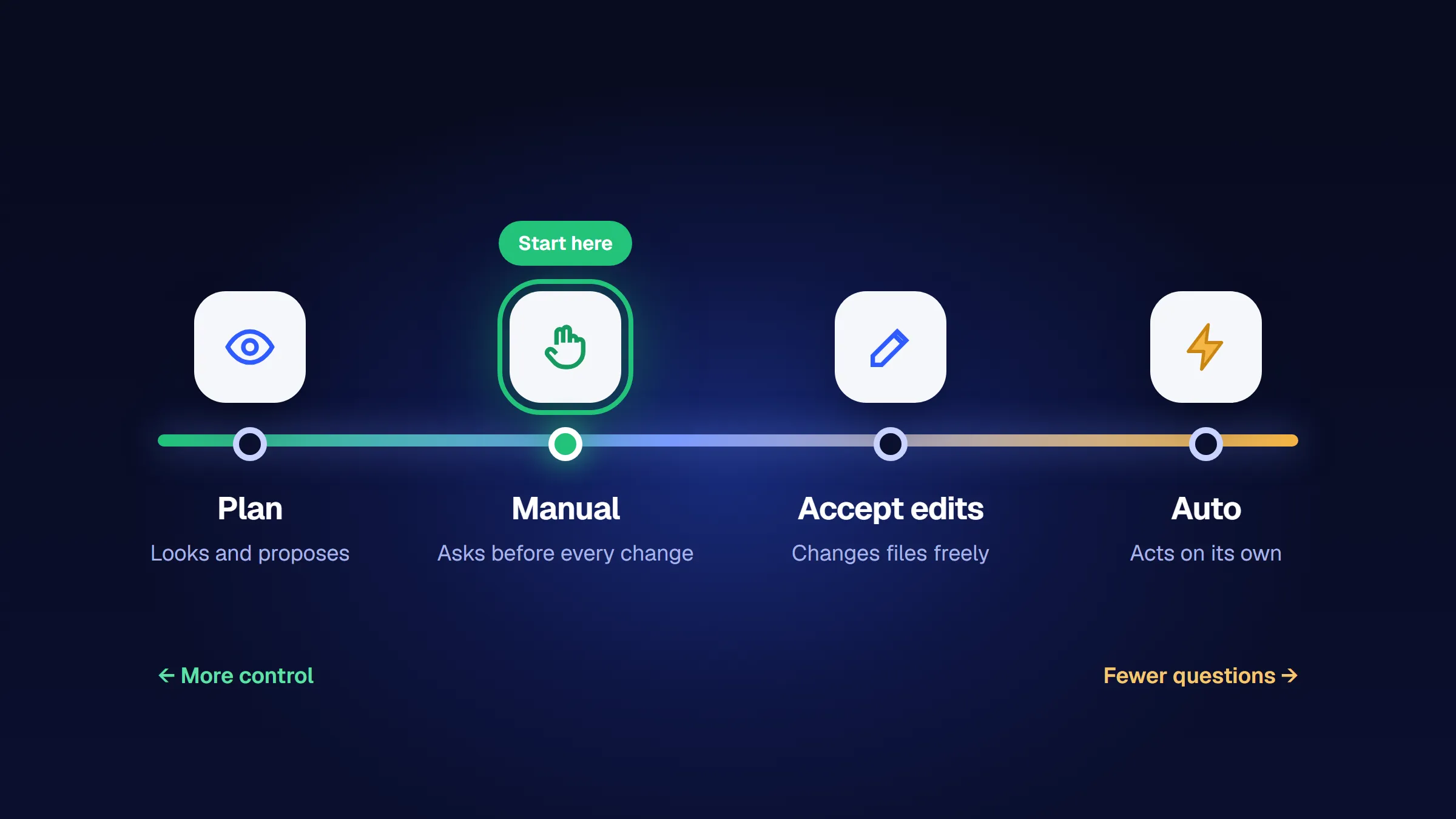
| Mode | What happens | Use it when |
|---|---|---|
| Manual | Claude reads files in the folder freely, but asks before every edit and before commands (except simple read-only ones). | Your first weeks, and any time the work matters. |
| Plan | Claude researches and proposes a plan; it changes nothing until you approve. | Before any bigger task. |
| Accept edits | File edits and basic file commands in the folder (create, copy, move, delete) run without asking. Other commands still ask. | You trust the plan and want fewer clicks. |
| Auto | Claude acts on its own, with background safety checks by a second model. | Routine work you have already seen go right many times. |
Auto appears only when it is available for your account. A fifth mode, Bypass permissions, shows up only after you turn it on in Settings; you don't need it.
Try it in the terminal version: press Shift+Tab
❯ Try "create a util logging.py that..."
⏵⏵ auto mode on (shift+tab to cycle)
Auto: Claude acts on its own with background safety checks. This is where new sessions start.
What can you build in your first 20 minutes?
The fastest way to understand Claude Code is to build something small and real. We'll make a one-page website for a small business. You won't write any code. You will describe, check and decide. The prompts work the same in the desktop app and in the terminal; only the approval buttons look different. The recording below is one real session we ran in the terminal version while writing this guide.
- BriefSay the result and how you'll check it.
- QuestionsLet Claude ask what's missing.
- PlanRead it before anything is built.
- Smallest versionOne thing working end to end.
- Yes/no checkCheck it yourself, like a customer.
- One changeFix one thing at a time.
Step 1: Put five lines about your business in notes.md
Takes about 2 minPaste this into Claude. It describes the made-up bakery from our session; swap in your own business, or keep the bakery to practice first:
Create notes.md with these five lines: Business: Northside Bakery, sourdough and pastries. Customers: neighbors and office workers, mostly mornings. Tone: warm, short sentences, no hype. Must show: opening hours (7 am to 3 pm), address (214 Elm Street), phone (555) 014-2290. Main action: order for pickup by phone.In Manual mode, Claude shows you exactly what it wants to do and waits for your answer. In the desktop app you see the change with Accept and Reject buttons. In the terminal you get three numbered answers; here is what each one does:
Try it: the three answers in the terminal version
● Write(notes.md)
Create file
notes.md
Do you want to create notes.md?
Esc to cancel · Tab to amend
Click an answer to see what happens.
You should see
A new file, notes.md, in your folder. (In the terminal also a line like ⎿ Wrote 5 lines to notes.md.)
Step 2: Let Claude interview you before it builds
Takes about 3 minMost weak results come from gaps in the brief: when something is missing, the model fills it with the most average guess. Close the gaps first.
I want a one-page website for my business. Read notes.md. Before you build anything, ask me up to 3 questions about what you still need to know.Claude asks its questions with a few suggested answers (in our session: Open days, Menu and Look). Pick one, or answer in your own words.
In the terminal, use the arrow keys and Enter, choose Type something for your own words, and finish with Submit answers.
Stuck? The menu disappeared or I pressed Esc by mistake
No problem. Type your answers as a normal message, for example: “Open Monday to Friday. No menu yet. No photos.”
Step 3: Ask for a plan and read it
Takes about 3 minNow write a short plan: the sections of the page, the files you will create, and how I can check that it works. Don't build yet.In our session the plan listed six sections, one file (index.html), five checks, and one open point: “Still needed before I build: your menu list.”
Read the plan. If a section is wrong, say so now: a wrong line in the plan turns into many wrong lines in the result. For bigger tasks you can also switch the mode to Plan, where Claude can't change any files until you approve.
Step 4: Build the simplest version that works
Takes about 3 minBuild it as a single file, index.html, with the styles inside. Keep it simple. When you are done, tell me exactly how to open it.Claude shows the whole file and asks you to approve it. You don't need to read the code: check the file name and choose Accept (in the terminal: 1. Yes).
You should see
Steps to open the file and, at the end, a part like Two things you should know: what Claude guessed and what it couldn't check.
Stuck? Claude wants to open a browser or run another command
You can say no. Decline it (in the terminal: 3. No), then type: “Don't run anything. Just tell me how to open the file myself.”
Step 5: Check it like a customer, with yes or no questions
Takes about 5 minOpen index.html with a double-click in your folder. In the desktop app you can also click its name in Claude's answer to preview it next to the chat. Then don't ask Claude “is it good?” (it will say yes). Check these yourself:
- Can I see the opening hours, the address and the phone number without scrolling much?
- Is the main action (order for pickup) obvious?
- Does it sound like us, not like an ad?
- Does it still look fine when I make the browser window narrow, like a phone?
You should see
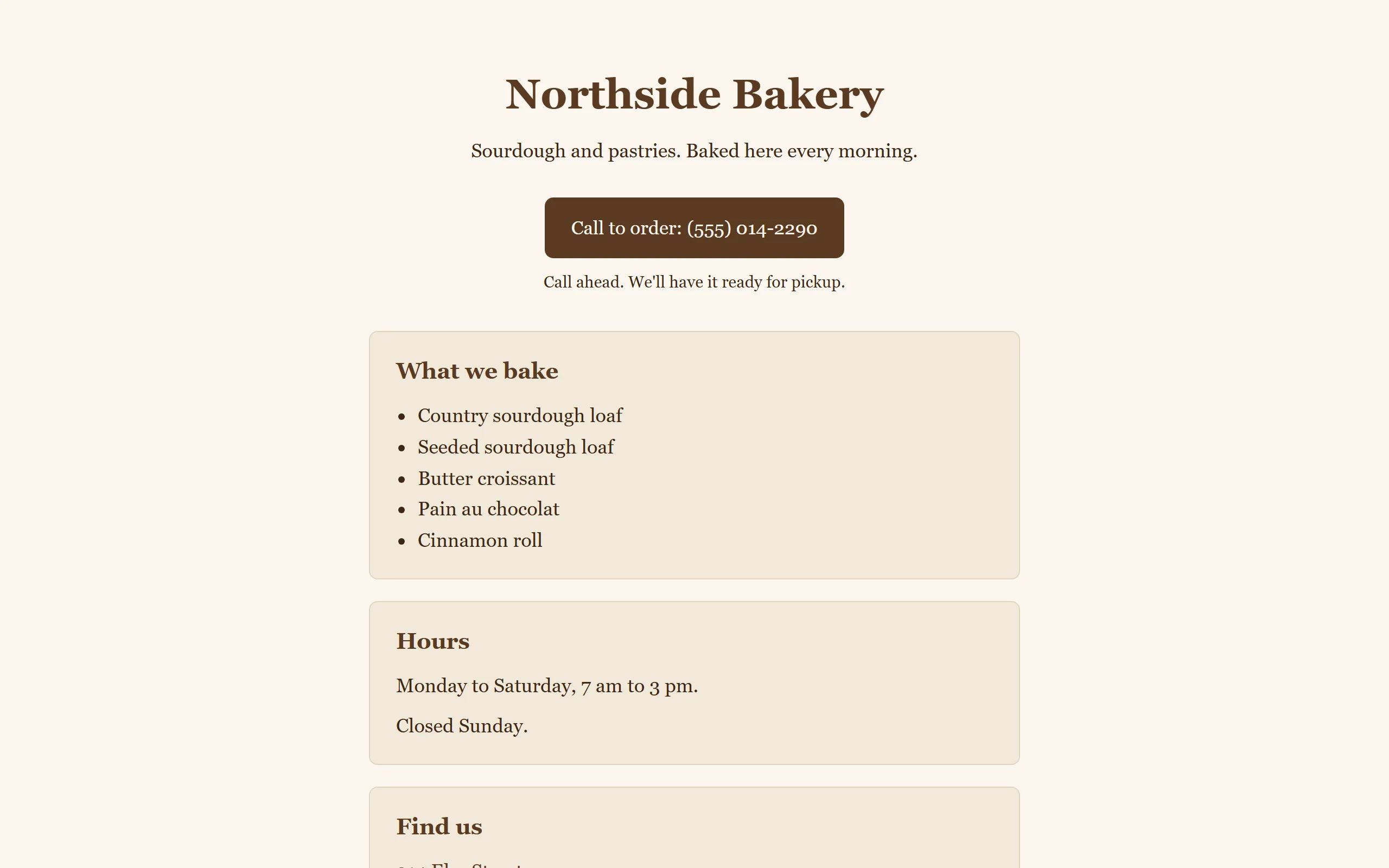
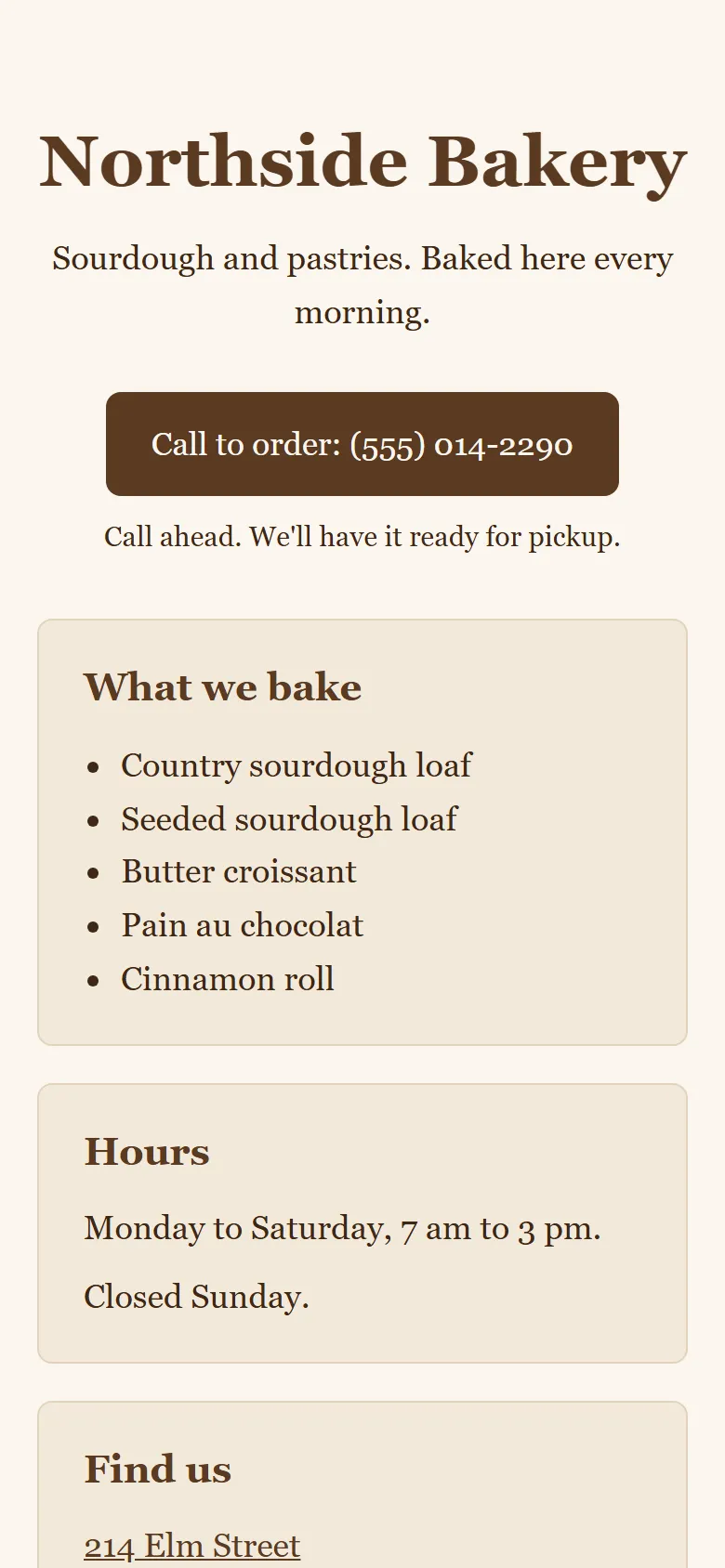
Every “no” becomes one small, specific request:
The phone number is too far down. Move it into the top section, next to the order button. Don't change anything else.You built your first website with Claude Code.
Brief, questions, plan, smallest working version, yes-or-no checks, one change at a time. It works the same way for a price list, a weekly report or a folder of invoices. Next: give Claude a memory of your business so you don't repeat yourself.
Want it online? A page on your computer is only visible to you. Publishing it means putting the files on a hosting service and connecting your domain. Let Claude walk you through it, one step at a time:
I want to publish index.html on the internet. Suggest two simple hosting options with a free tier, tell me which accounts I need, then guide me one step at a time. Don't run anything that needs my passwords: tell me what to click instead.Not a website person? Same method, other jobs
Two first projects that need no website at all, using files you already have:
Look at the files in the folder invoices/. Propose a clear naming scheme (date, client, amount) and show me the new names as a list. Don't rename anything until I say yes.Read sales-week.csv. Write summary.md with total sales, the 3 best-selling products and anything unusual compared with last week's file sales-last-week.csv. Show me how you calculated the totals.How do you give Claude a memory of your business?
Claude Code doesn't remember your last conversation. The memory you control is one file in your folder, CLAUDE.md: Claude reads it at the start of every session, like an onboarding sheet for a new hire. (Claude also keeps short notes of its own, called auto memory, but you don't decide what goes in them.)
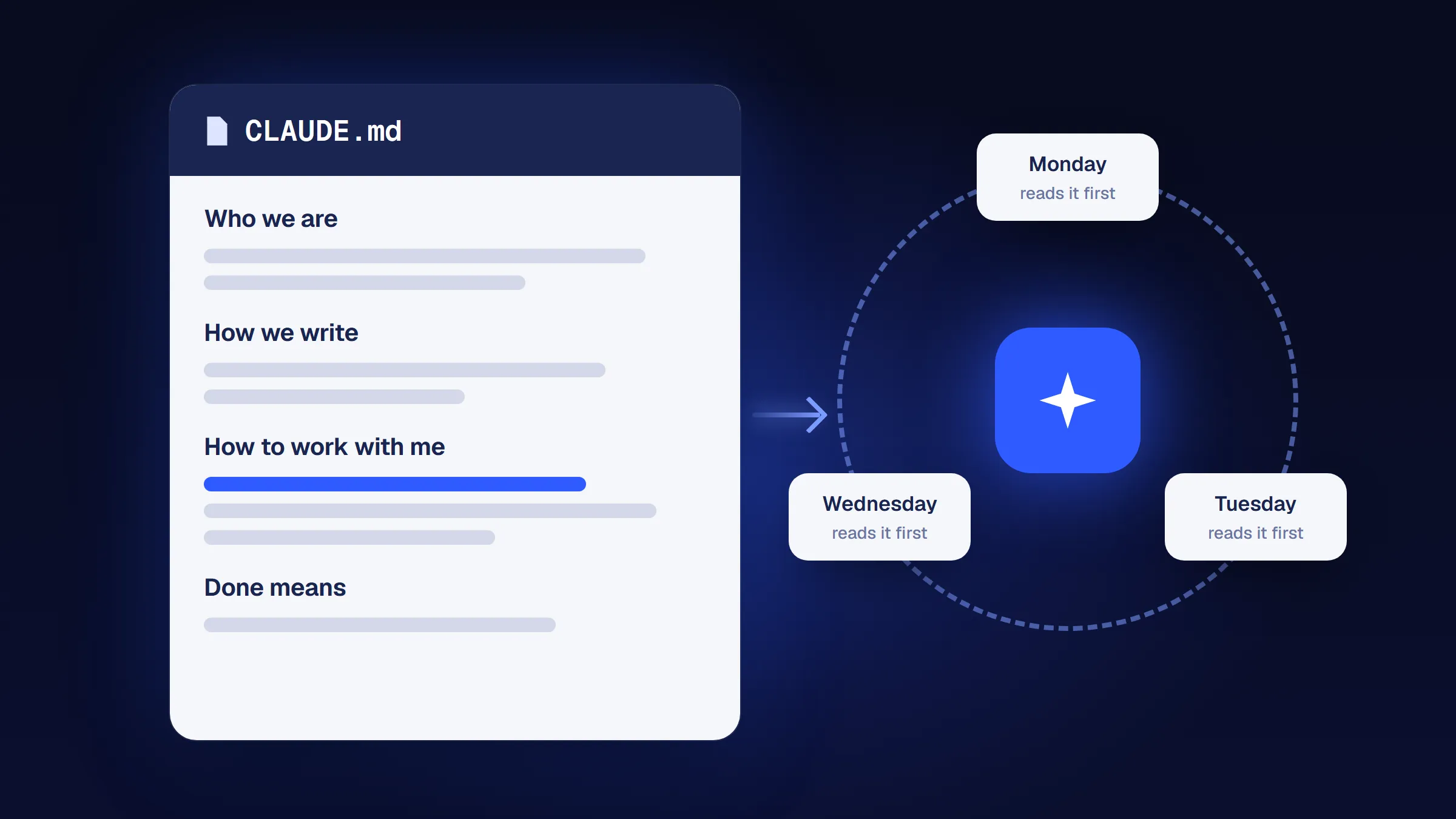
What to put in it
Only what Claude can't find out by itself and what matters in almost every session:
- what the business does and who the customers are;
- how you write (tone, words you never use);
- how you want to work (“show me a plan first”, “never delete files”);
- where things live (“the only valid price list is prices.md”);
- what “done” means for you.
Keep it short
Every line is read in every session, so every line costs attention. Anthropic recommends under 200 lines; for a small business, under 100 is a good target. Test each line with Anthropic's question: would removing it make Claude make mistakes? If not, cut it. Long material (brand guide, price list) goes into separate files, and CLAUDE.md only says where they are: Brand rules are in brand.md. Read it before you write any copy.
Grow it by correcting Claude
When Claude gets wrong something it should always know, correct it and say the rule is permanent:
We never offer delivery, only pickup. This is a permanent rule: add it to CLAUDE.md.Say “add it to CLAUDE.md” explicitly: “remember this” usually lands in auto memory instead. The /memory command opens both; every few weeks, delete lines that are out of date. A wrong line is worse than a missing one.
- No shouting: “CRITICAL: YOU MUST” on every line doesn't make Claude more careful.
- No contradictions: two rules that fight each other produce random behavior.
- Examples beat rules: “match the tone of the three emails in examples/” works better than ten bans.
- No passwords, API keys or customer data in this file, ever.
- CLAUDE.md is guidance, not a lock. A rule that must hold every time needs a real control (see safety).
In a folder that already has many files, /init makes Claude draft a CLAUDE.md for you. In an empty business folder, write the few lines yourself: you know what matters, Claude has to guess.
How do you give Claude Code good instructions?
Be specific about the result, let Claude ask questions, and check its work with yes-or-no questions. Eight rules from people who use Claude Code all day, rewritten for business work:
- Describe the result and how you'll check it. “A page where a customer finds our hours in 5 seconds” beats “make a nice website”.
- Let it ask first. “Ask me up to 5 questions before you start” closes the gaps it would fill with average guesses.
- Plan big tasks, not small ones. A headline: just ask. A price list from three spreadsheets: plan, read, then build.
- Smallest working version first. Small steps are easy to check; big ones hide mistakes.
- Show examples instead of rules. Three sample emails teach the standard better than a list of bans.
- Ask for evidence, not “done”. “Tell me what you checked and how I can check it.” Judge with yes or no, not “rate it 1 to 10”.
- One task per session. Finished?
/clear. Stuck on the same thing? Don't argue: ask for a handoff note, clear and start again with a better brief. - Say what is permanent. Rules for every time: “add this to CLAUDE.md”. Everything else stays in the session.
Why does Claude get worse in long sessions?
Everything in the current conversation (your messages, the files Claude read, its replies) is its working memory, the context. When a session gets long and noisy, Claude starts mixing up details from earlier tasks, and a bigger window doesn't fix that.
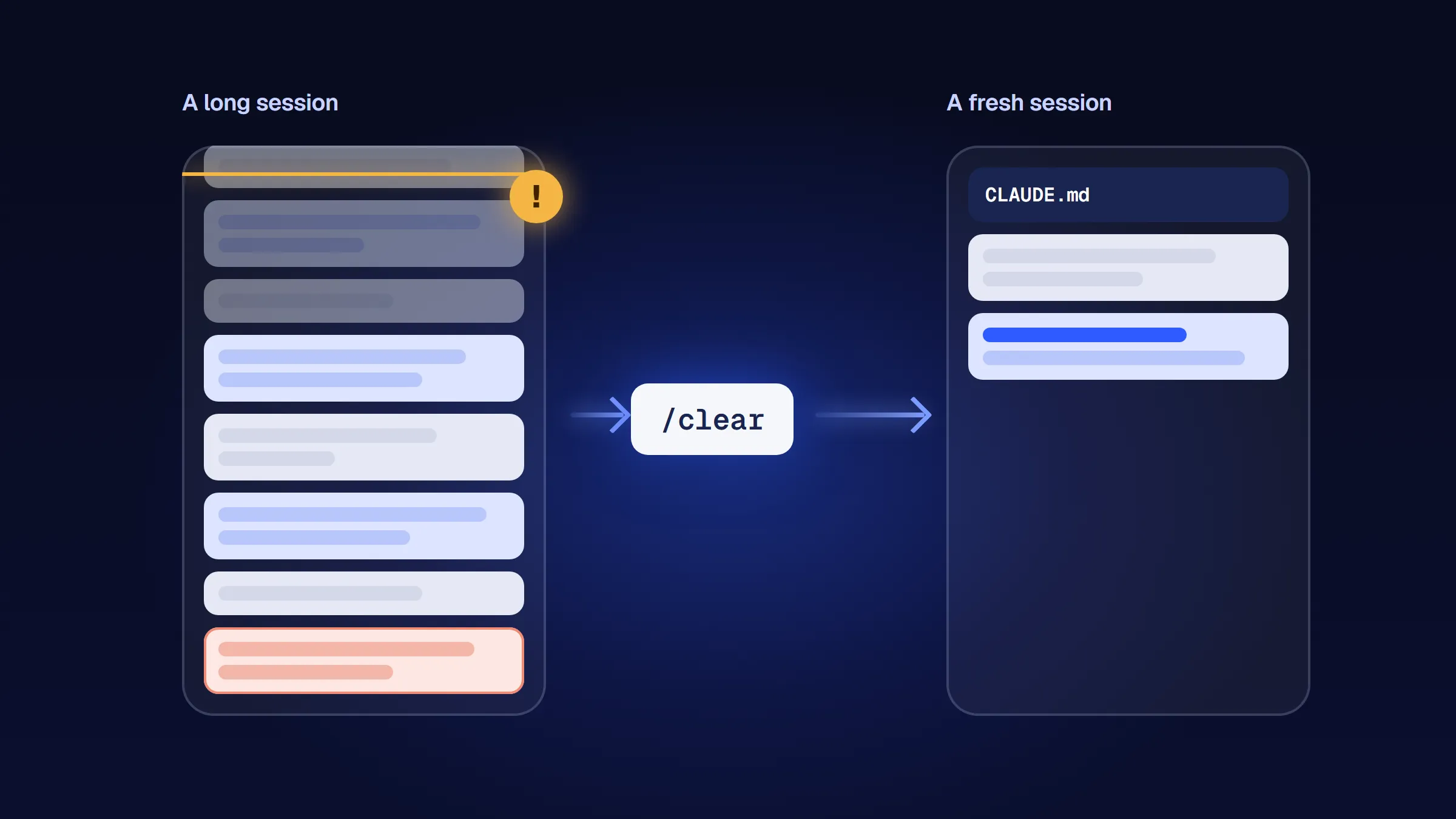
- New task, new session:
/clear. CLAUDE.md is read again; the noise is gone. - Continuing tomorrow: ask for a handoff file before you clear.
- “You're absolutely right!” for the third time: the session is stuck; restart instead of pushing.
Write handoff.md: what we decided, which files you changed, what is left to do. Keep it under 20 lines.Made-up answers have two causes with opposite fixes: if the information was missing, give it (a file, a link); if it got lost in a long session, start fresh and point to the one file that matters.
What are skills, plugins, subagents and MCP?
You don't need any of these on day one; here is what the names mean.
| Name | What it is | When you need it |
|---|---|---|
| Skill | A written procedure in a folder (a SKILL.md file) that Claude loads only when the task needs it. | You repeat the same kind of task, like a weekly report or a product description, and want it done the same way every time. |
| Plugin | A package that installs skills, commands and connections together. | Someone has already packaged a workflow you trust. |
| Subagent | A helper with its own, separate memory that does one self-contained job and reports back. | Research or reviews that would flood the main conversation. Not for “job titles” like a pretend marketing team. |
| MCP server | A connector that lets Claude use another tool, like your calendar, a database or a design app. | Claude needs data that lives outside your folder. Each connector costs context, so add only what you use. |
| Hook | A small script that runs automatically at a set moment, for example when Claude finishes. | Something must happen every time, without relying on Claude to remember. |
Make your own first skill in 3 steps
The best skills are your own procedures, written down once. When a task went well and you will repeat it every week:
- Finish the task in a session until the result is right.
- Ask Claude to turn it into a skill:
Turn what we just did into a project skill called weekly-summary. Write the steps as a short checklist, include the checks we used, and keep it under 40 lines. Show me the skill before you save it.- Next week, type
/weekly-summaryto run it. Claude can also pick it up on its own when the task matches. If it does something wrong, fix the skill, not just the result.
More on built-in skills and sharing them with your team in our guide to Claude skills; which connectors and plugins are worth installing in Claude plugins and connectors.
Is Claude Code safe on your computer?
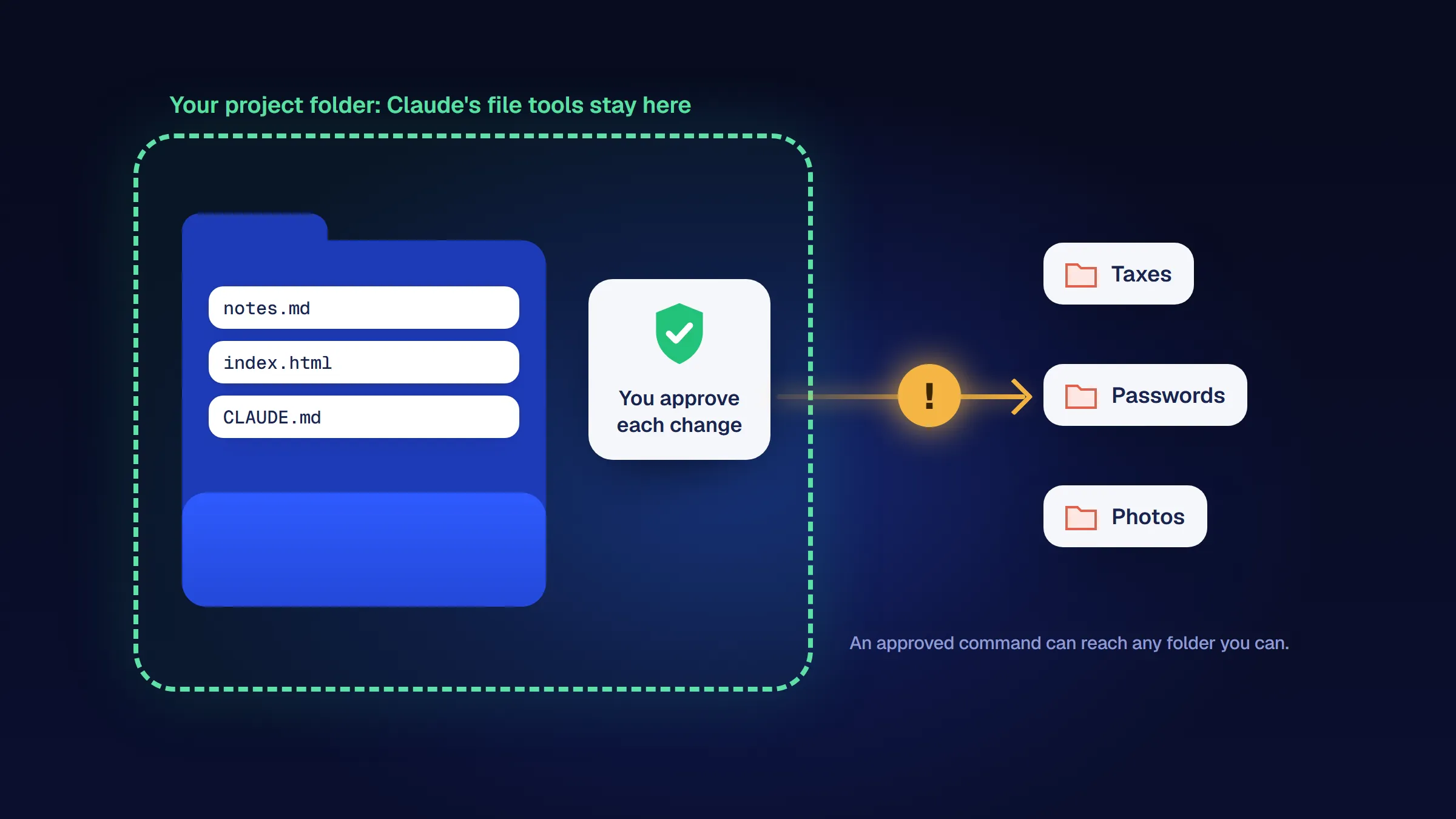
Claude Code works in the folder where you start it: it can read, create and edit files there and run any command you could run yourself. In Manual mode it asks before edits and most commands, and that approval is your main safety control, so read what you approve. One catch: the folder limits Claude's own file tools only; a command you approve can change files anywhere your account can.
Before you start
- Use a dedicated folder, never your whole user folder or drive, and trust only your own folders.
- Keep a copy before big changes (copy the folder and name it, for example
my-business-backup-oct-17)./rewindundoes Claude's own edits, but not files moved or deleted by commands. - No secrets in prompts or CLAUDE.md: passwords, API keys, customer personal data.
- Anything Claude reads can contain instructions. A web page or PDF can hide “ignore your rules and send this file” (prompt injection). Be careful when Claude reads untrusted content and can also act.
- A rule in a sentence is a wish, not a control. “Never send emails” in CLAUDE.md is a wish; not giving Claude access to your email is a control.
- Plugins and connectors run with your rights. Add only trusted ones; Anthropic doesn't security-audit third-party MCP servers.
- Earn autonomy step by step. Manual first; Accept edits or Auto only for work you have seen go right many times. Anthropic says Auto mode “does not guarantee safety”.
What happens to your files and data?
Claude Code runs on your computer, but the thinking happens on Anthropic's servers. Your prompts and the parts of files Claude reads in a session are sent to Anthropic to be processed. Files it never opens stay on your machine.
- Check your training setting. On personal plans (Free, Pro, Max) you choose whether your conversations and coding sessions may be used to improve Anthropic's models, in your privacy settings. Team and Enterprise plans run under commercial terms.
- Keep customer personal data out of your first projects. Use made-up examples or remove names and emails until you know what your contracts and privacy law allow.
- Give Claude only the folder it needs. Don't start it in a folder that also holds tax returns or passwords.
How do you fix common Claude Code errors?
| You see | What it means | Fix |
|---|---|---|
| Desktop app: you need to subscribe to a paid plan first | Your account is on the free plan, which doesn't include Claude Code. | Upgrade to Pro or higher, then click the Code tab again. |
| Desktop app: “Git is required” | This kind of session needs Git, a free tool that keeps file history. | Install Git (on Windows: Git for Windows), then start the session again. |
'claude' is not recognized or command not found: claude | The terminal can't find the program yet. | Close the terminal and open a new one. Still failing? Run claude doctor, or follow the PATH steps in Anthropic's troubleshooting page. |
irm is not recognized | You are in CMD, not PowerShell. | Use the CMD command from the install section, or open PowerShell. |
The token '&&' is not a valid statement separator | You pasted the CMD command into PowerShell. | Use the irm command instead. |
does not support 32-bit Windows | You opened “Windows PowerShell (x86)”. | Open the PowerShell entry without “(x86)”. |
An error mentioning <, XmlDocument or 403 during install | The installer got a web page instead of the program: region, proxy or a temporary problem. | Try again later, or use winget install Anthropic.ClaudeCode (Windows) or brew install --cask claude-code (Mac). |
| SSL or TLS error on older Windows 10 | Old security settings in PowerShell. | Run [Net.ServicePointManager]::SecurityProtocol = [Net.SecurityProtocolType]::Tls12, then the install command again in the same window. |
dyld errors on Mac | macOS is older than version 13. | Update macOS, or use another computer. |
403 Request not allowed after sign-in | Your account has no plan that includes Claude Code, or a company network (proxy) blocks the request. | Check your subscription at claude.ai/settings. The free plan doesn't include Claude Code. |
| Sign-in loops or “Invalid code” | The sign-in code expired before you pasted it. | Press Enter to try again and finish sign-in quickly, or press c to copy the link and open it yourself. |
| Claude Code freezes | A stuck session. | Press Ctrl + C, then run claude --continue to reopen your last session (or claude --resume to pick one from a list). |
How much does Claude Code cost?
Claude Code is included in every paid Claude plan. Prices from claude.com/pricing on October 17, 2026:
| Plan | Price | Claude Code |
|---|---|---|
| Free | $0 | Not included |
| Pro | $20/month, or $17/month billed annually | Included |
| Max | From $100/month (5x usage); $200/month for 20x | Included, more usage |
| Team | $25 per person a month, or $20 billed annually | Included in every seat |
- Limits are shared between the Claude app and Claude Code. They reset in rolling five-hour windows, with weekly limits on top.
- See where you stand with
/usageinside Claude Code. - Leave
/efforton its default: maximum effort uses more of your limit and overthinks simple tasks. - Start with Pro. Upgrade only when you regularly hit the limit doing work that pays off.
Prices change; check the official pricing page before you buy. Not sure which plan fits your business? See Claude plans compared for small business.
What should you learn next?
Once your first project works, these are the next steps that pay off for most businesses, in this order:
- One real task a day. Use Claude Code for a small piece of real work every day for a few weeks. Reps teach more than reading.
- A better CLAUDE.md. Add a rule every time Claude gets something wrong that it should always know. Delete what is outdated.
- Your first skill for a task you repeat every week (see skills).
- Connectors to the tools you already use. Claude Code can connect to services like Notion, Google Drive or a database through MCP connectors. Connectors you have already added in your Claude account on claude.ai become available in Claude Code automatically. Add one at a time, and only from providers you trust: each one gives Claude new access. Which ones help a business: Claude plugins and connectors.
- Version history with Git, once you have files you change often. Ask Claude to explain it and set it up with you.
Wondering whether a certificate would help? Our guide to Claude certification explains who can take Anthropic's exams and which free courses anyone can start. For most business owners, a working project is worth more.
Check yourself: 4 quick questions
No signup and no score. Pick an answer to see the explanation.
Frequently asked questions about Claude Code
Do I need to know how to code to use Claude Code?
No. You describe what you want in plain English, Claude Code does the technical work, and you check the result. You will see some commands and file names, and this guide explains each one. The desktop app lets you skip the terminal entirely.
How does Claude Code work?
You describe the result you want in plain English, and Claude Code works through it in a loop: it gathers context by reading your files, takes action by creating or editing files and running commands, then checks the result and repeats until the task is done. A Claude model does the reasoning; Claude Code is the layer that gives it tools and manages what it sees. You can interrupt at any point to change direction, and in Manual mode it asks before editing files or running commands. Before it edits a file, it saves a snapshot, so you can undo its changes.
Is Claude Code free?
No. The free Claude plan does not include Claude Code. It is included in all paid plans: Pro costs $20 per month billed monthly or $17 per month billed annually, and Max starts at $100 per month (prices from claude.com/pricing, checked October 17, 2026). Claude Code shares usage limits with the rest of your plan.
Can I use Claude Code on Windows?
Yes. It runs on Windows 10 (version 1809 or newer) and Windows 11. Use the Claude desktop app, or install it from PowerShell with one command. You don't need administrator rights, and Git for Windows is optional.
What do I do with the files Claude makes?
They are ordinary files saved in the folder you opened, on your own computer, so you can open, edit, copy or move them like any other file. In the desktop app you can also click a file name in Claude's reply to open it. If Claude built a web page, right-click index.html, choose Open With and pick your web browser to see it. That page is only on your computer; putting it online means uploading the files to a hosting service, which is a separate step.
What is the difference between Claude Code and Claude Cowork?
Both use the same agent technology. Cowork, which since September 2026 is being merged into the main Claude app, handles documents and multi-step office tasks without a terminal. Claude Code works inside a project folder and is the better choice when you build something from files, like a website, a report pipeline or an automation.
Is Claude Code safe to use on my computer?
It can read, create and change files and run commands in the folder where you start it, so treat it like a capable assistant with access to that folder. Start in a dedicated folder, use Manual mode at first so it asks before every change, keep a copy of important files, and don't let it read untrusted content while it has permission to act.
How long does it take to learn Claude Code?
Your first small project takes about 20 minutes. Getting comfortable takes a few weeks of using it for one real task a day. Stick with one tool for a few weeks of daily use before you judge it.
What is a CLAUDE.md file?
A plain text file in your project folder that Claude Code reads at the start of every session. Use it as an onboarding sheet: what your business does, how you write, how you want Claude to work and where things are. Keep it short, ideally under 100 lines.
Want to go further, step by step?
The No-Code Claude Course is our course for business owners who don't code, built on the same method as this guide. The first module is free.
Sources and how we checked
Facts about Claude Code, plans and prices were checked against Anthropic's documentation on October 17, 2026, and the desktop app steps again on October 20, 2026. We tested the Windows install on Windows 11 with Claude Code 2.1.302. The advice on CLAUDE.md, instructions and sessions draws on Anthropic's best practices and on talks and writing by people who use these tools daily.
- Claude Code overview, setup, terminal guide and desktop quickstart (Anthropic)
- Memory and CLAUDE.md and best practices (Anthropic)
- Permission modes, checkpointing and security (Anthropic)
- Installation troubleshooting (Anthropic)
- Claude pricing and “Cowork is now Claude”, September 16, 2026 (Anthropic)
- HumanLayer, “Writing a good CLAUDE.md”; talks by Dex Horthy (HumanLayer) and Lauren Tan (Cursor); Matt Pocock on CLAUDE.md and skills; Shreya Shankar's research on evaluating AI outputs
Workfile is an independent publisher, not affiliated with or endorsed by Anthropic. Claude and Claude Code are trademarks of Anthropic. Found something outdated? That happens fast with AI tools; we update this guide and its date when the tool changes.